- To connect Wonderchat to your Slack workspace, head over to Settings > Integrations > Slack > Connect & Manage
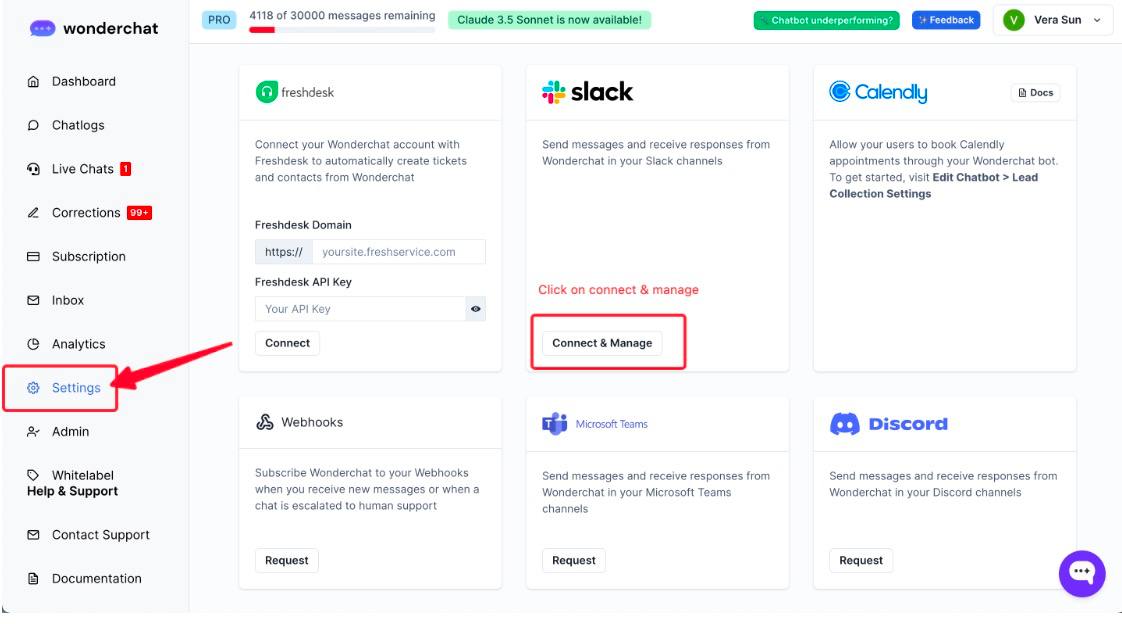
- Upon clicking on “Connect & manage” click on the “Connect to a new Slack workspace” button to connect to your slack workspace.
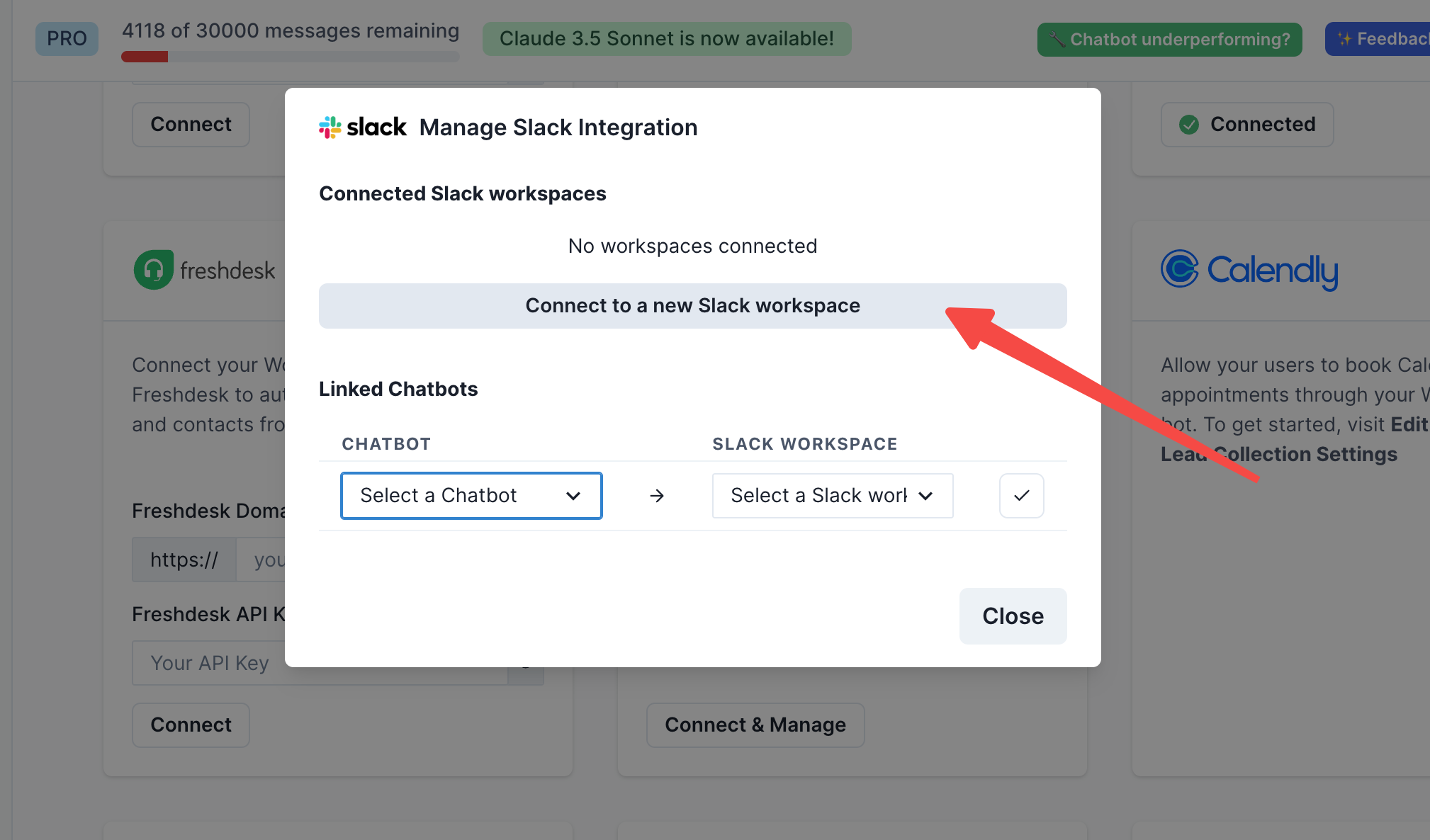
- Enter the slack workspace that you wish to connect to

- Click on “allow” to enable Wonderchat permissions to access your slack account
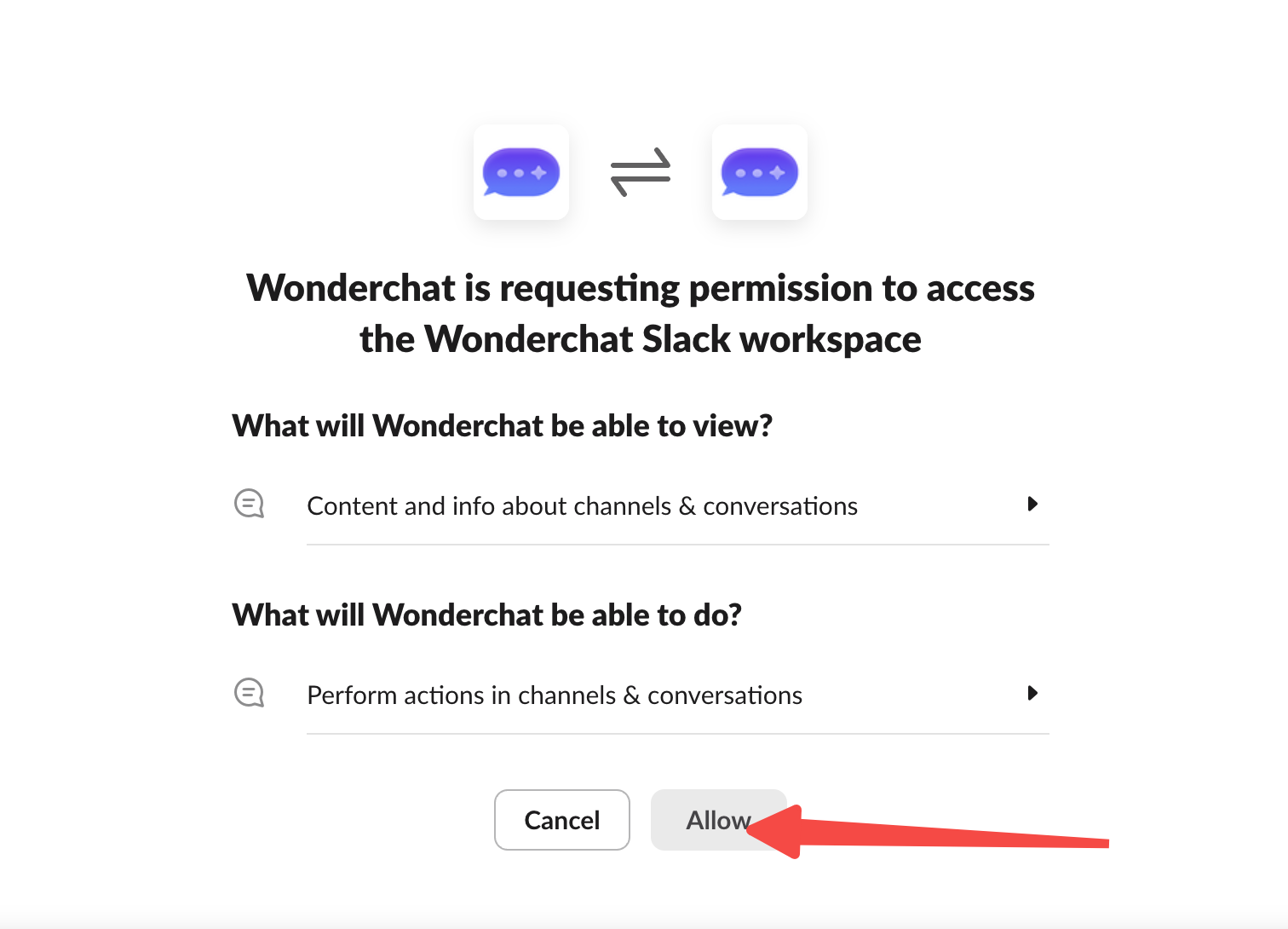
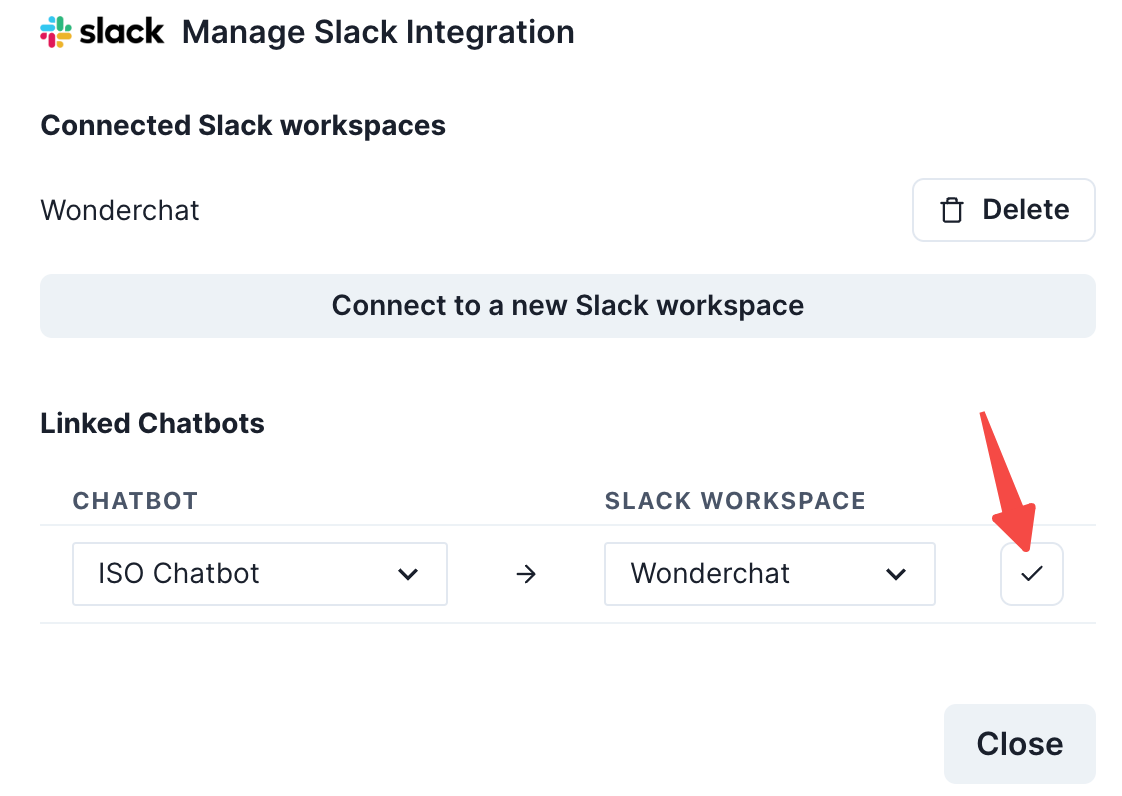
- Once allowed, you will be able to navigate to your slack integration to manage the chatbot’s access to your slack app
- Ensure that you select the “Chatbot of your choice” and connect it to your desired “Slack Workspace”
- Click on the “ ✅ ” icon to confirm the addition of your linked chatbot into your slack workspace
- Add the Wonderchat App into your Slack channel and mention @ Wonderchat to start chatting with your chatbot within your Slack Channel

FAQ:
- Can I connect multiple chatbots to one Workspace?
Ans: One chatbot can only be connected to one workspace at the moment.
- How can I talk to my chatbot inside my slack workspace?
Ans: Mention @ Wonderchat to talk to our chatbot inside your slack workspace. Make sure the chatbot is invited into the channel.