This guide teaches you how to set-up SMS notifications by connecting Wonderchat to the Twilio app on Zapier.
- Visit the Zap template below for Wonderchat and Twilio
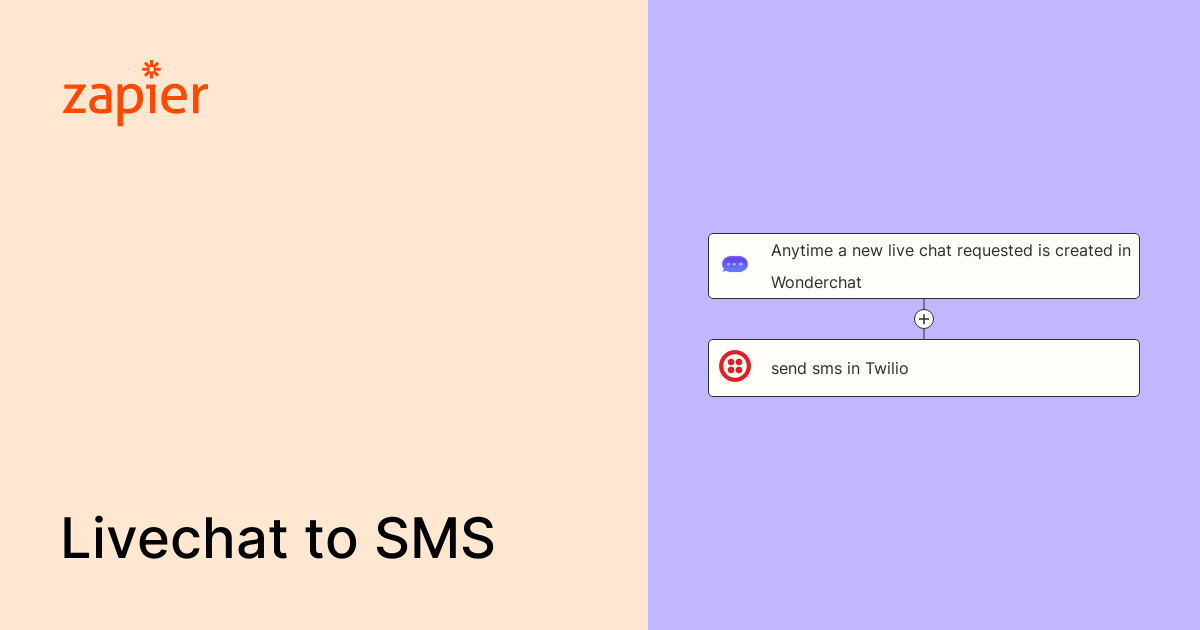
Anytime a new live chat requested is created in Wonderchat, send sms in Twilio. | Zapier
Connect the apps you use everyday to automate your work and be more productive. 3,000 apps and easy integrations - get started in minutes.

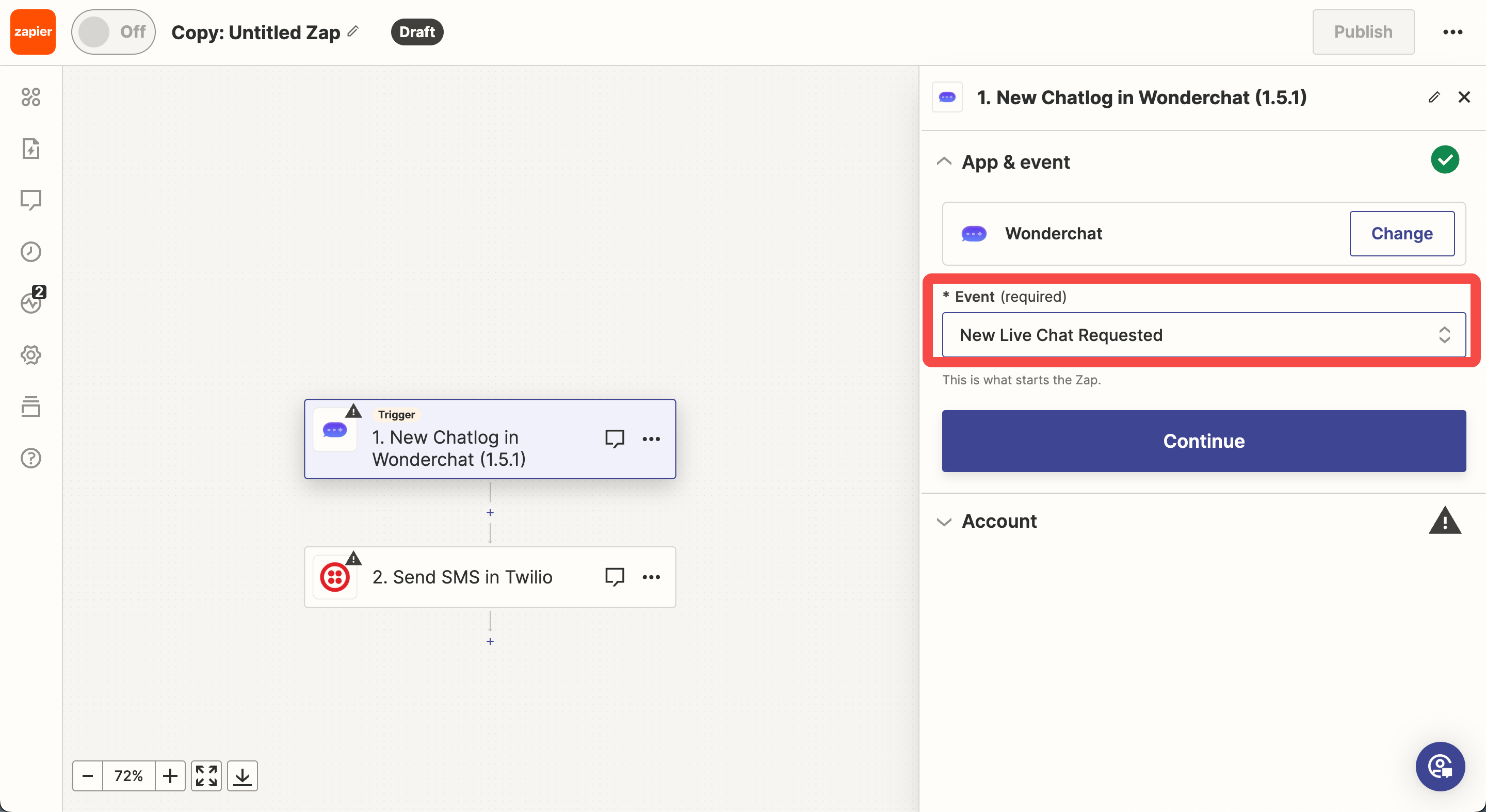
- Select Wonderchat as the trigger app, and set the ‘event’ to be ‘new live chat requested’.
- Connect your Wonderchat credentials to Zapier
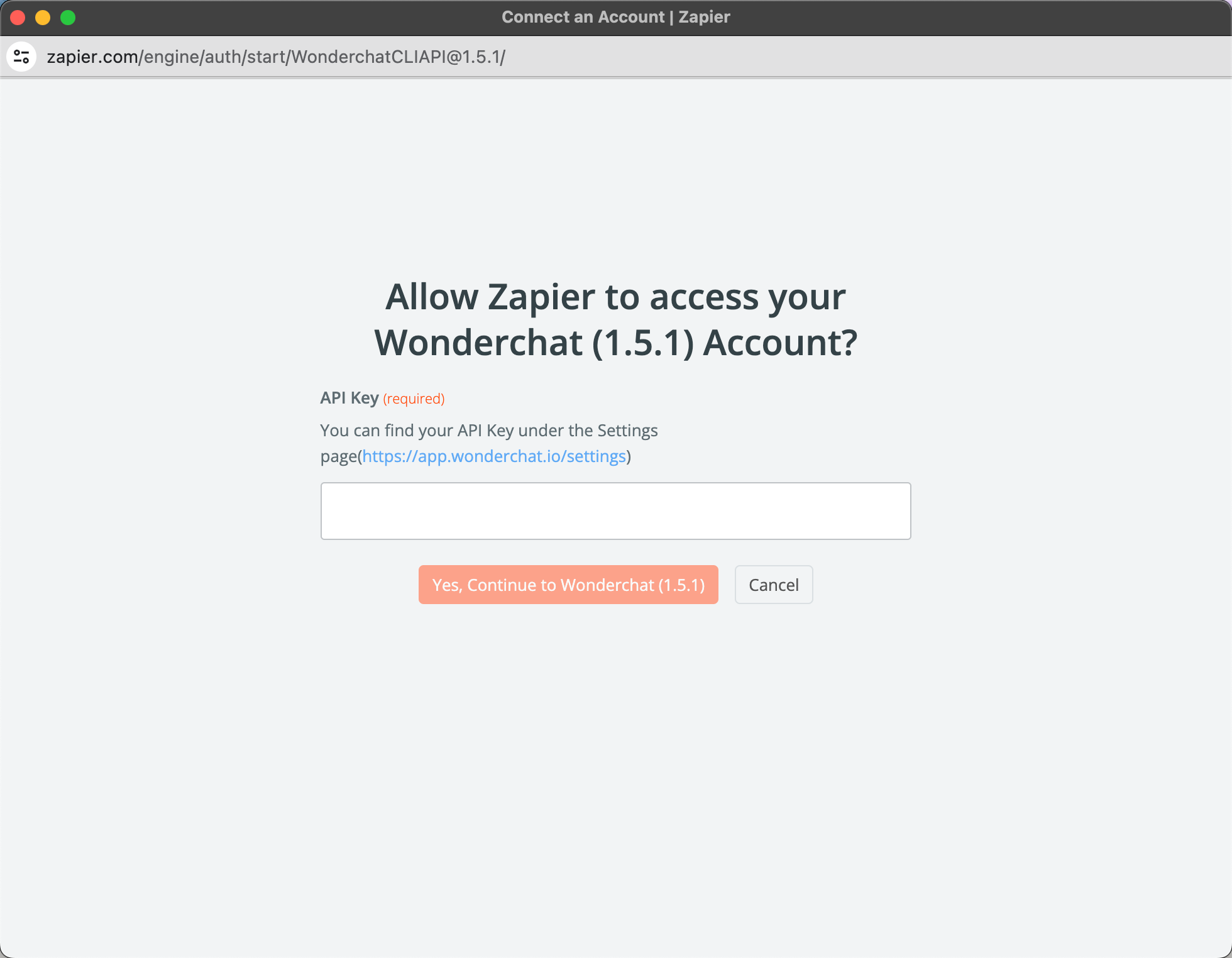
- Navigate to the ‘Settings’ page and click on API key
- Connect your Twilio credentials to Zapier
- To connect, log into your Twilio account and find “API credentials” on this page https://www.twilio.com/user/account/settings.
- Copy and paste your account SID
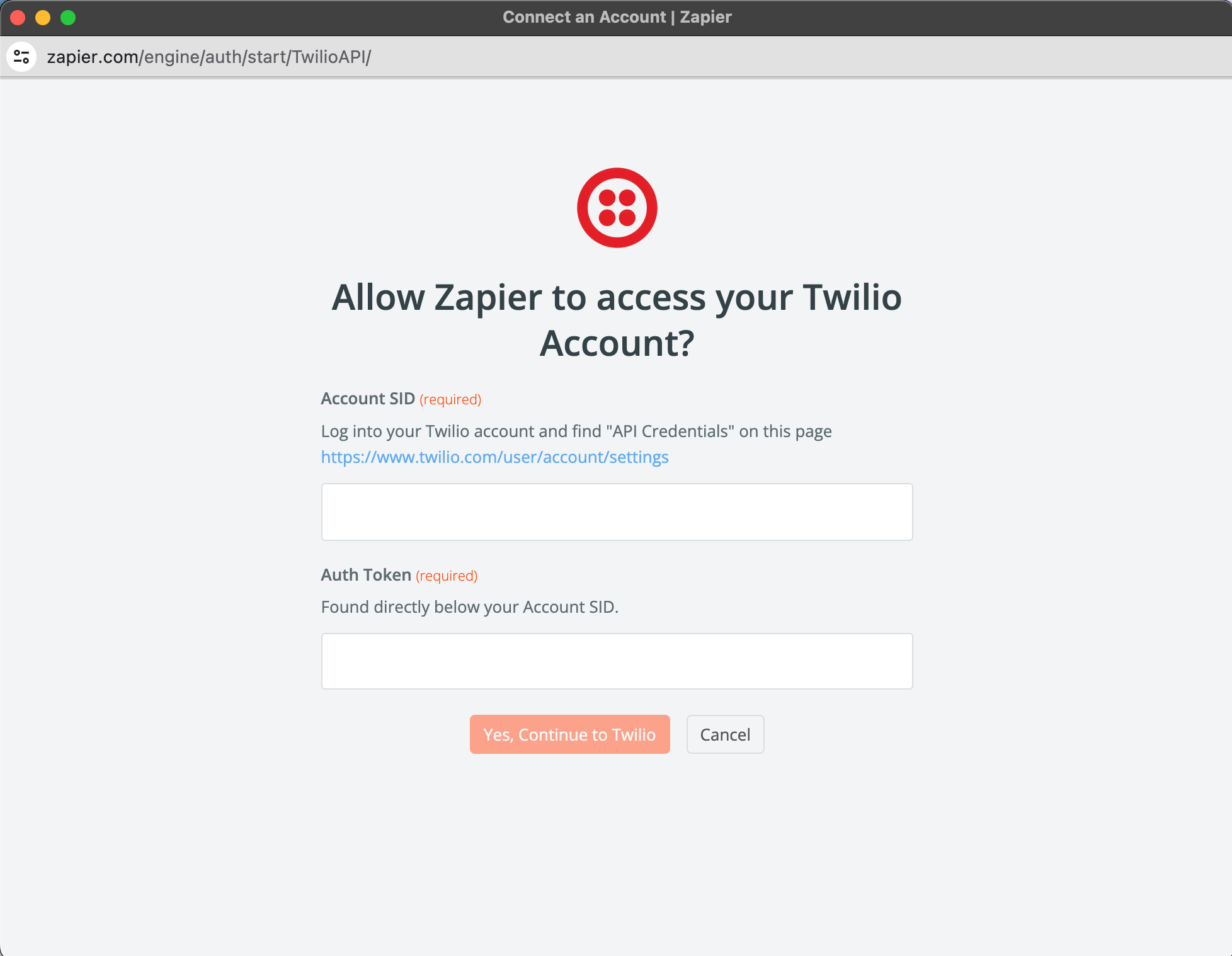
- Once successful, you will see the account being shown as “Twilio”
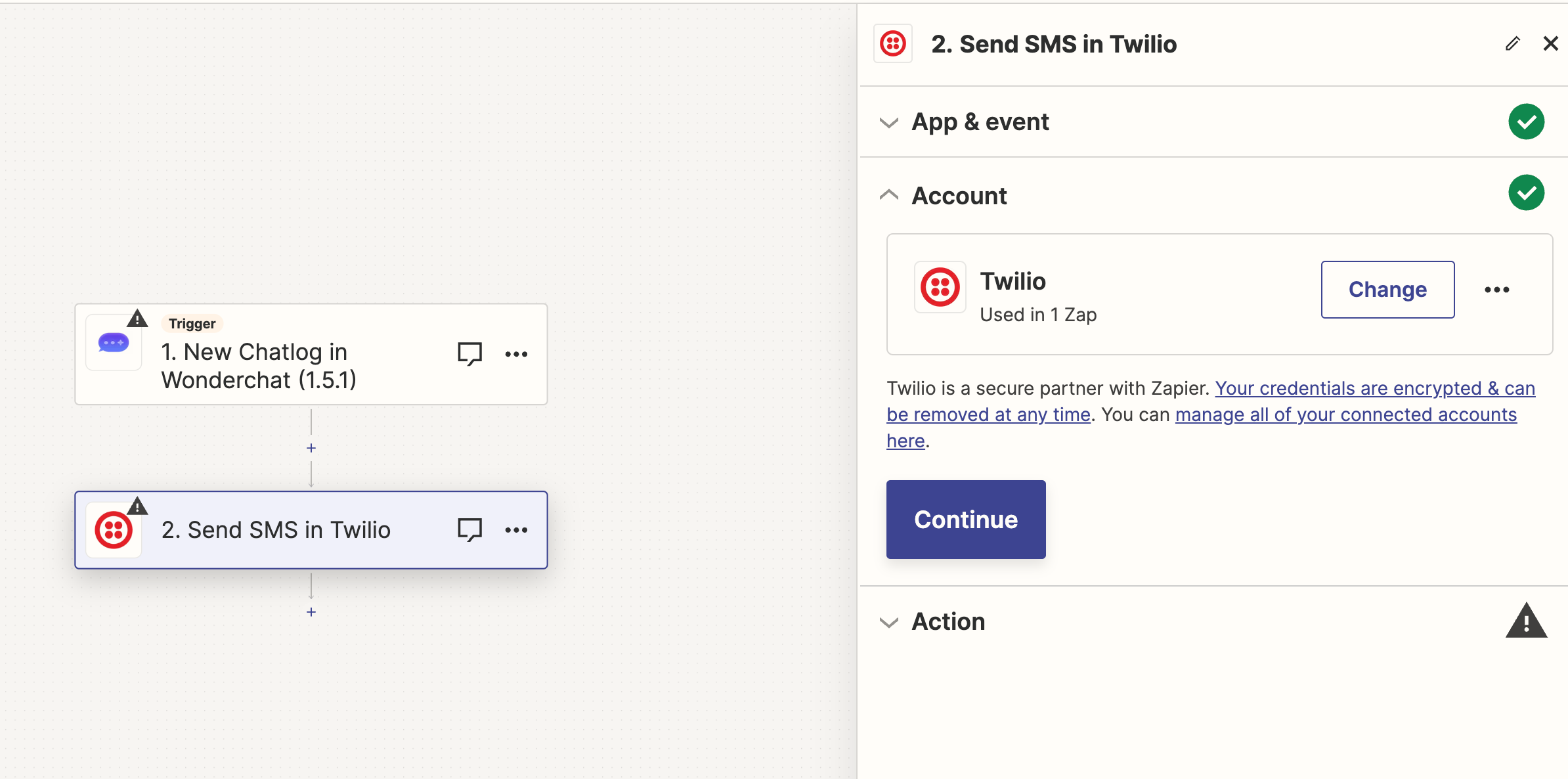
- Within the “Send SMS in Twilio” action trigger, include the following information
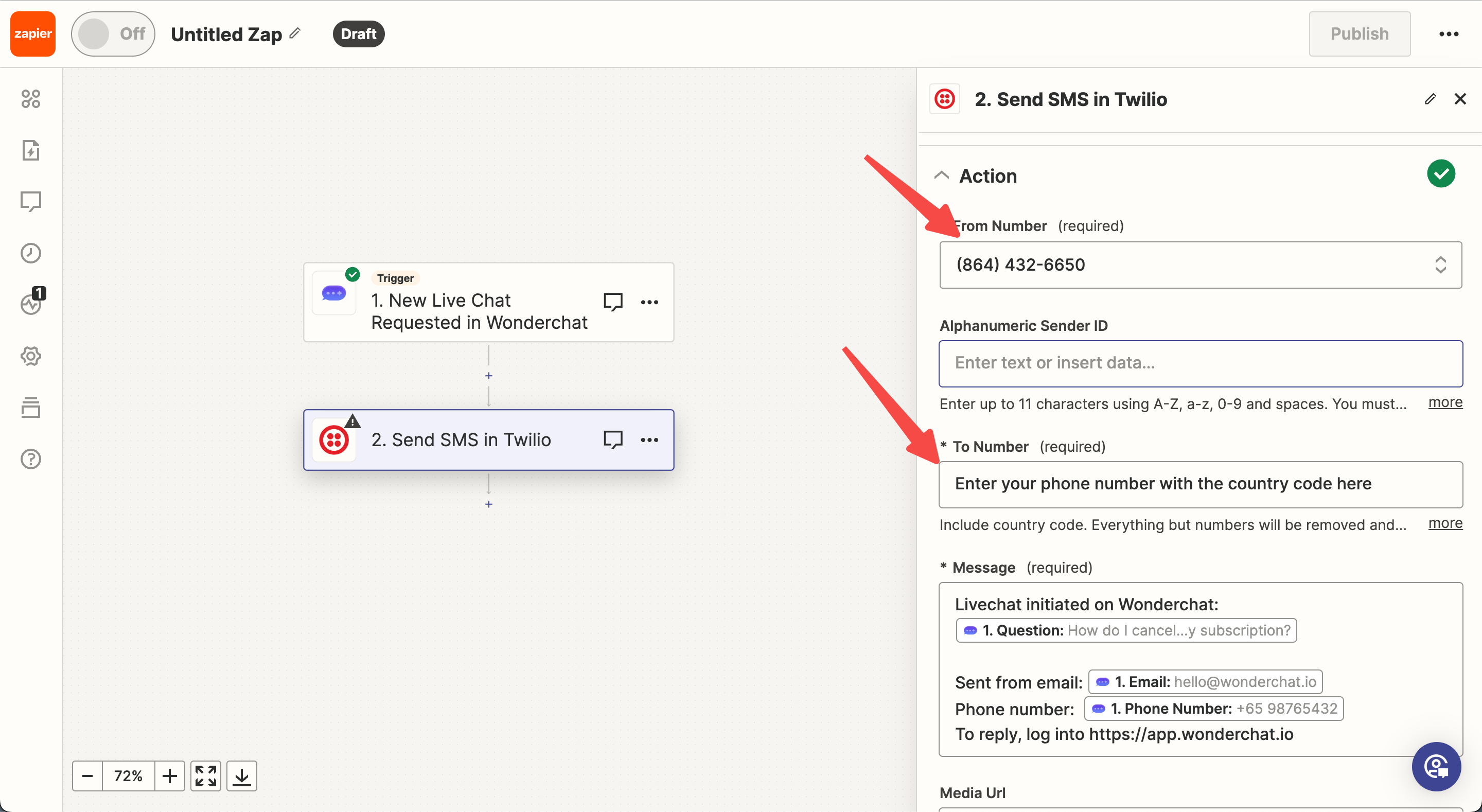
- From Number: [Select a number from your Twilio account to send the SMS]
- Alphanumeric Sender ID: [You may leave this blank]
- To Number: [Enter the phone number you want an SMS to be delivered to, this should be your business or personal phone number]
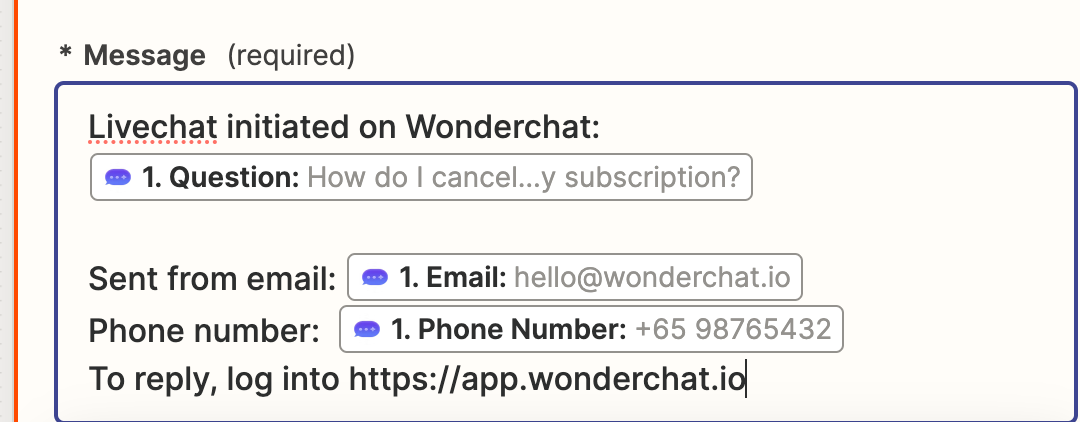
- Message: Copy and paste the following message below
Livechat initiated on Wonderchat: Insert the Question field Sent from email: Insert the Email field Phone number: Insert the Phone number field To reply, log into https://app.wonderchat.io
- Run the zap and you should receive an SMS from Zapier informing you about the new user query.