This guide covers how you can set up your chatbot to get emails sent to your SDRs or relevant sales personnel when a prospect brings up a service that is of their interest.
To get started, navigate to your desired and enter the Edit Chatbot > Advanced Settings tab and select Add Tag.

Setting up the “Add Tag” feature
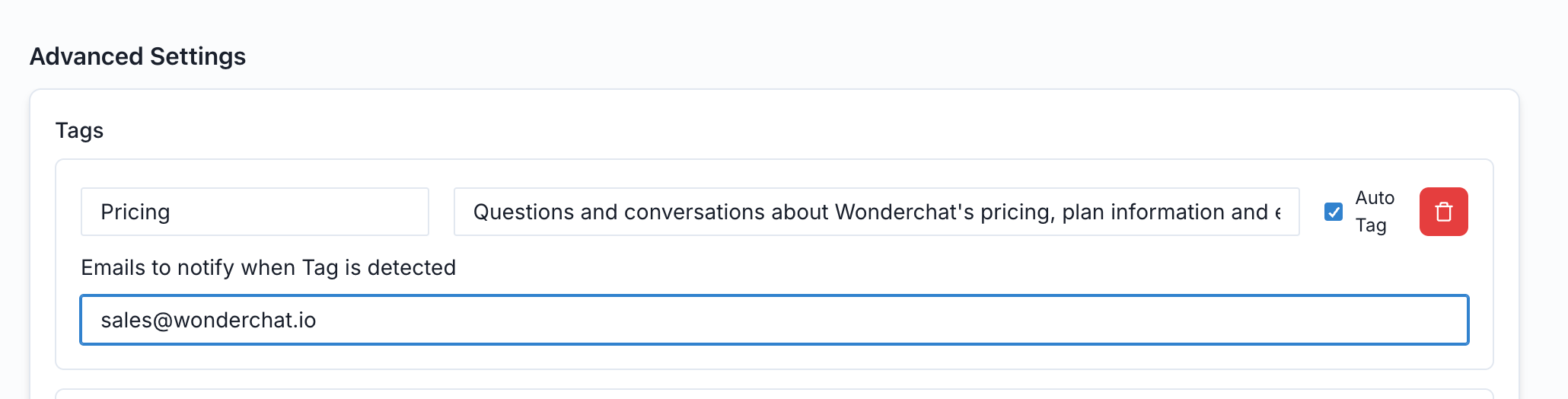
The Add Tag feature contains 3 custom fields for you to add information to instruct a chatbot on how to identify when certain topics are being asked by the sales prospect.

Tag Name
The Tag Name should be the name given to the topic a user brings up in their conversation with the AI chatbot. It works like a topic detection trigger, in which the mention of that keyword or topics related to that trigger would allow our system to flag the chatlog out as being classified under the Tag Name. Upon being flagged under the specific tag name, an email with a summary of the AI conversation with the lead will then be sent to the sales development representative.
Description
The description should provide further contextual information for the AI chatbot to better identify when a Tag Topic is being brought up by the end user.
Emails to notify
Enter the email of the individuals or sales representative who should be notified via email when a user’s conversion gets flagged by the AI as falling within the Tag Name.
Multiple emails can be added as long as the emails are seperated by a comma.
Auto Tag
The ‘auto tag’ feature ensures that Wonderchat will be able to tag conversations automatically when a Topic Tag is being mentioned by the site user over the course of the conversation. Turning this off would mean that the chatbot administrator would have to assign tags manually to every chatlog.
An example of how this feature works with “Pricing” as the tag topic is shown below.
Once this is set up, you can go ahead and chat with your bot about the specific topic.
The chatbot, upon detecting the topic being mentioned in the chat with the lead would be able to route the lead information and chat conversation history to your SDR or relevant sales in charge. They will be able to then reply the users directly and continue the conversation with their users from the inbox.