Sometimes you may want to add an extra website to your chatbot because your knowledge base could be stored seperately in a subdomain, which may seperate it from your businesses’s main website. Or you could just be interested to add a single webpage from another website into your Chatbot. This guide is meant to help you get started.
There are two ways to add a website to your chatbot. The first method is when you want to have mutliple websites at the outset stored in one chatbot. The second method is when you wish to retrospectively add a website to your chatbot after it is created.
Method 1: Adding Multiple Websites through the “Create Bot” page
By clicking on Create Bot, you can have the option to “Add URL” to your chatbot so that it can be built from mutliple website links.
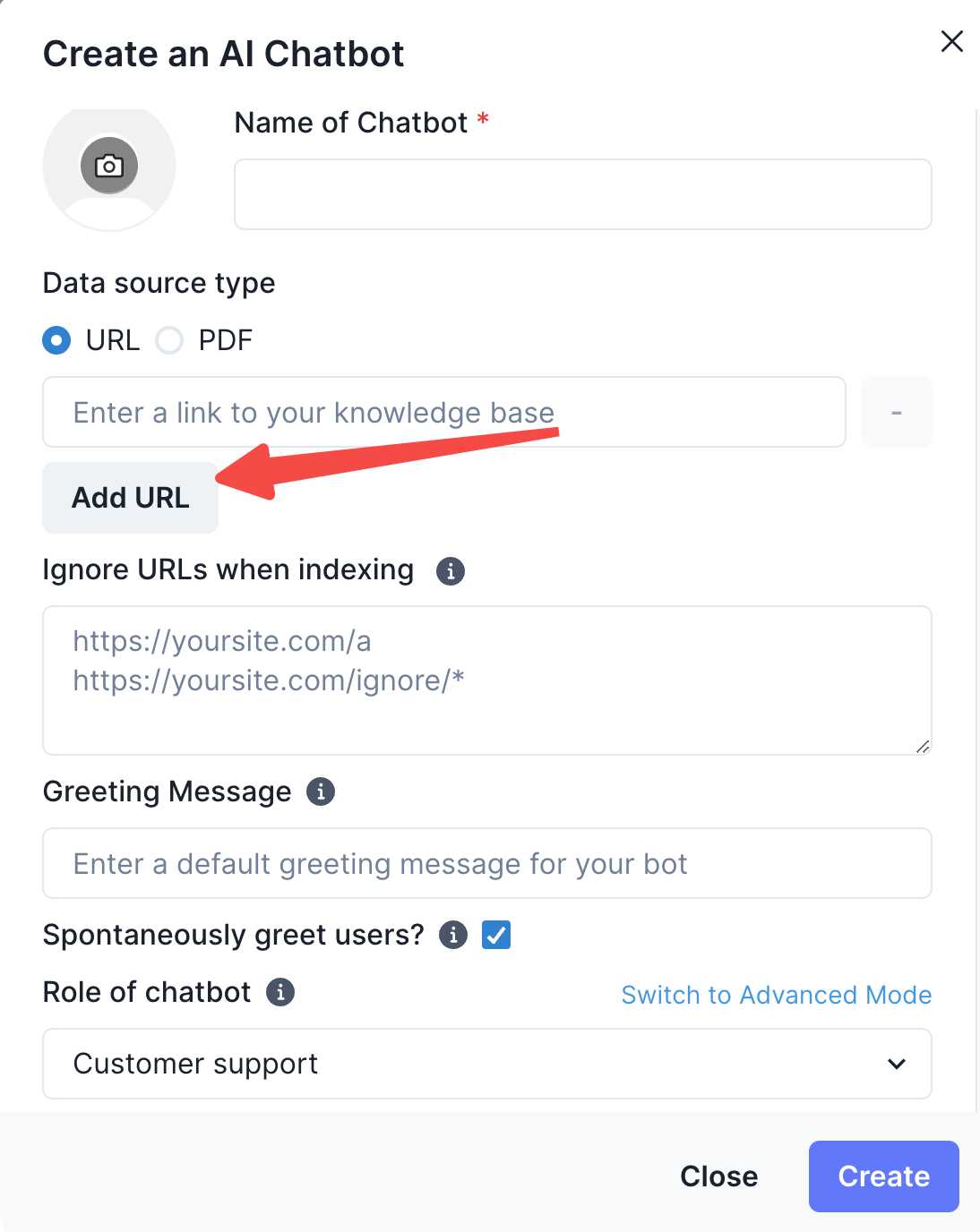
By adding the URL through the link, you can create a chatbot built from multiple website links. Note that the “Create Chatbot” page will limit you to adding a maximum of 3 websites at the start. If you want your chatbot to store even more webpages, you can create a chatbot first and follow the steps below to add unlimited websites to your chatbot.
Method 2: Retrospectively Adding or Deleting Websites or Webpages into your Chatbot after it has been created
Once you have a chatbot that is ready-made and in place, you can click on the “Edit” icon under the “Pages Crawled” column.
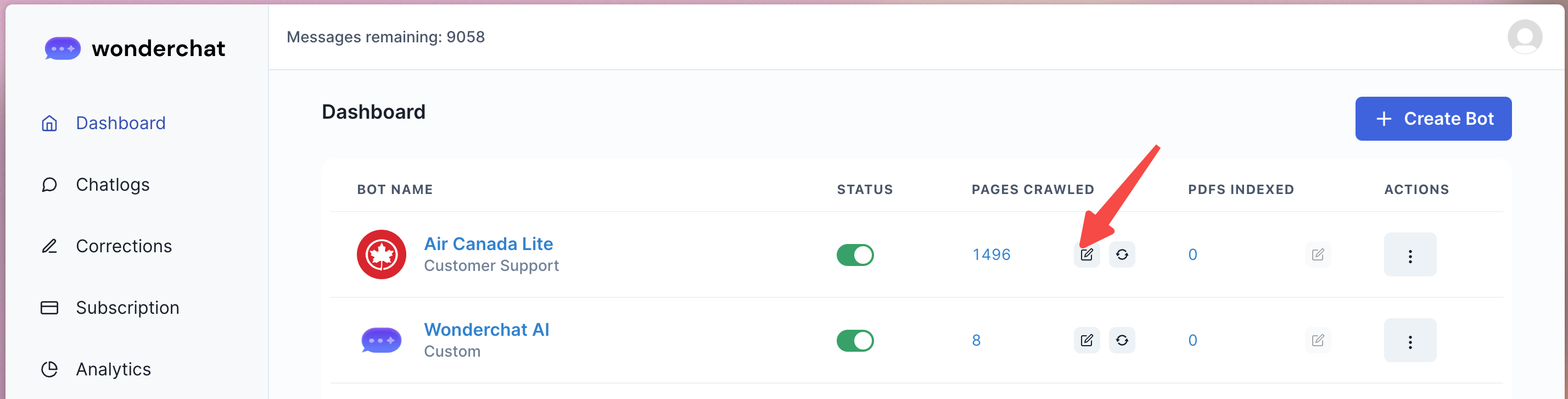
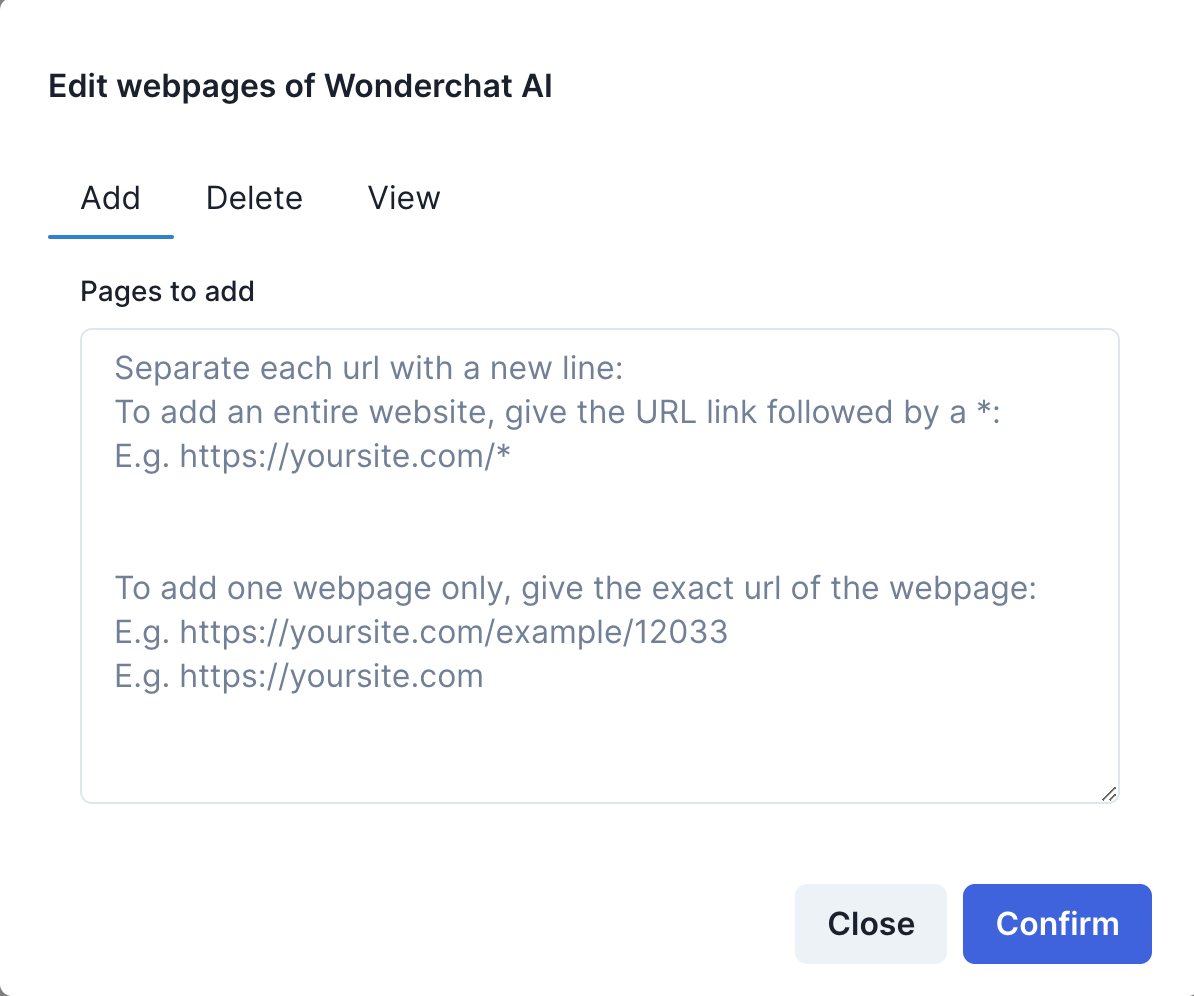
Clicking on the edit icon would then open up a tab for you to add or delete entire websites or single webpages from your chatbot.
- To add an entire website, remember to add an asterisk behind your website URL
- E.g. https://wonderchat.io/* would allow Wonderchat to store your entire website
- E.g. https://wonderchat.io would allow wondechat to add and store ONLY the homepage of wonderchat and not other pages on the website.
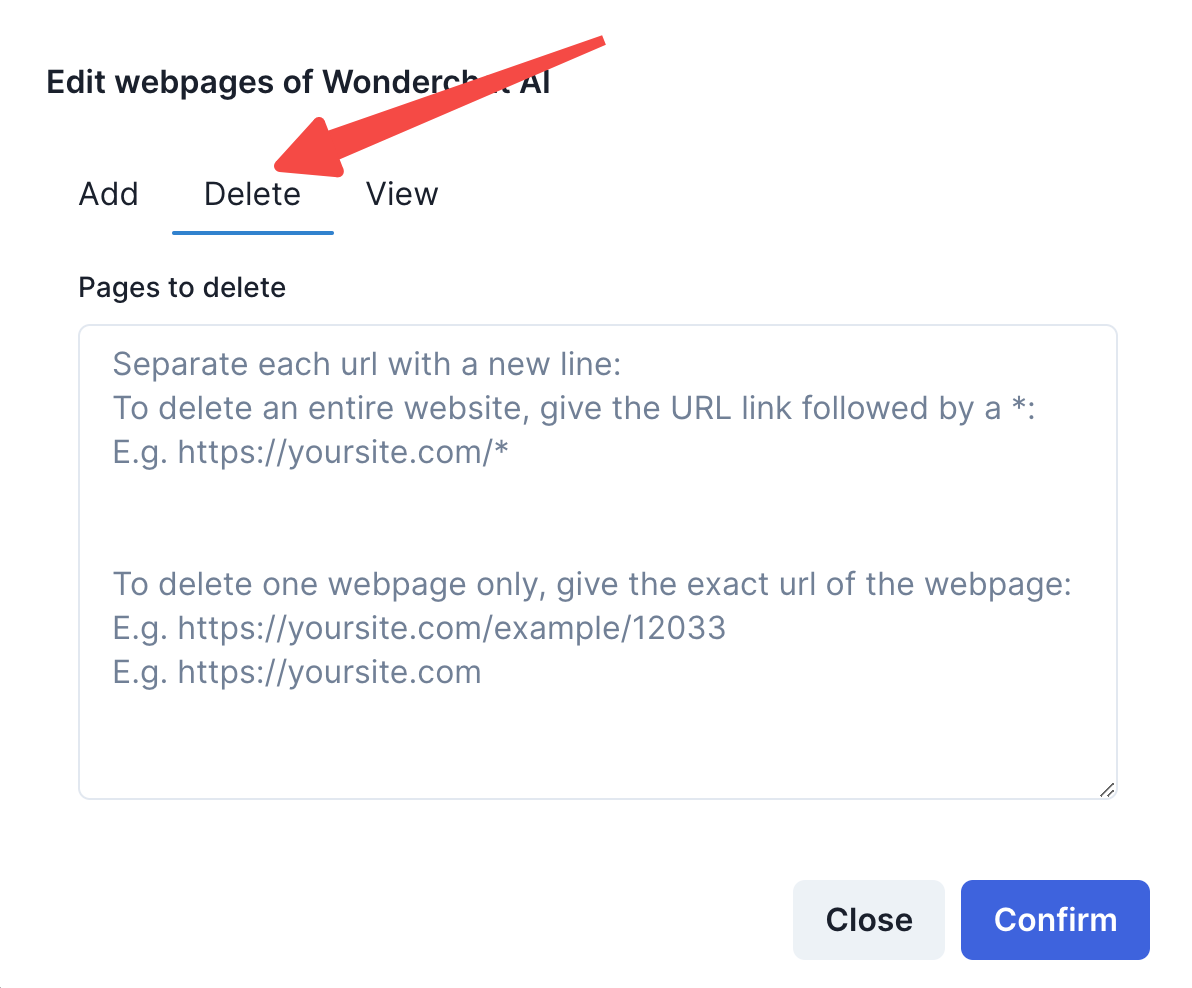
- Similarly, you can delete entire websites or webpages by navigating over to the delete tab and entering the URL that you wish to delete.
- To delete an entire website, remember to add an asterisk behind your website URL
- E.g. https://wonderchat.io/* would allow Wonderchat to delete your entire website
- E.g. https://wonderchat.io would allow wondechat to delete ONLY the homepage of wonderchat and not other pages on the website.
- To delete an entire website, remember to add an asterisk behind your website URL
Adding or deleting single webpages is very useful when you have a specific webpage you want to update or delete, as you may have published a new post on your blog that you want the chatbot to read immediately.
FAQs
- How many websites can I add?
You can add unlimited amount of websites from the ‘Edit Webpages” page. The chatbot will store all your pages until it hits the maximum page cap.