Sometimes, your AI chatbot may be unable to answer all relevant questions. This is where a human agent can step in to answer all queries that a chatbot cannot respond to.
To allow for users to contact human support, simply follow the steps below.
1. Go to “Create a Chatbot” or “Edit Chatbot”
- To enable human support, go to create a chatbot, or the ‘edit chatbot’ feature
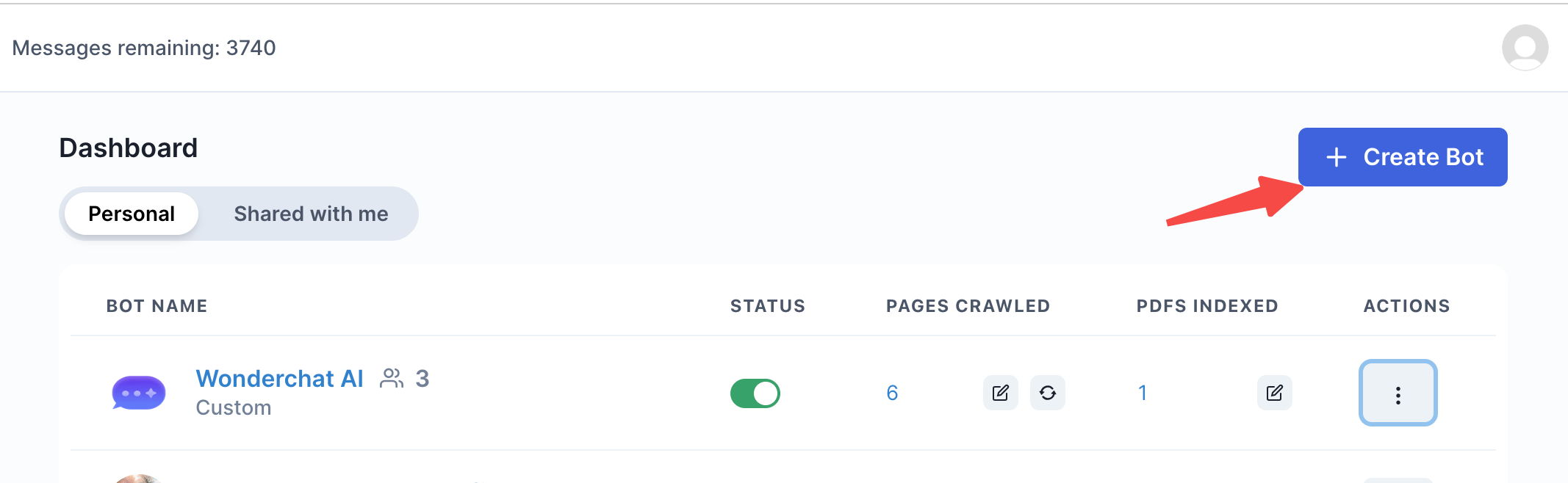
- Edit chatbot as shown below
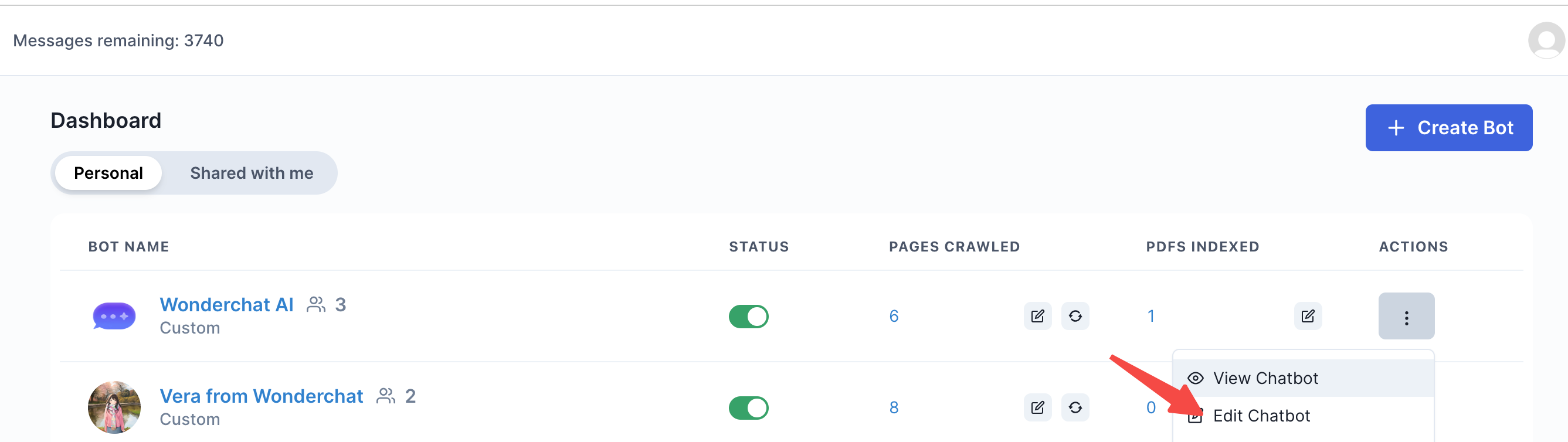
2. Go to “Create a Chatbot” or “Edit Chatbot”
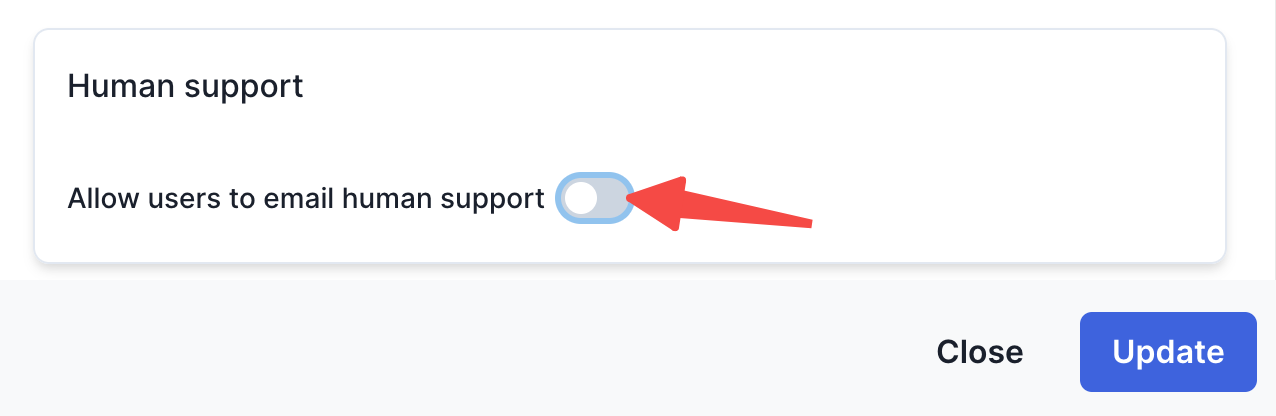
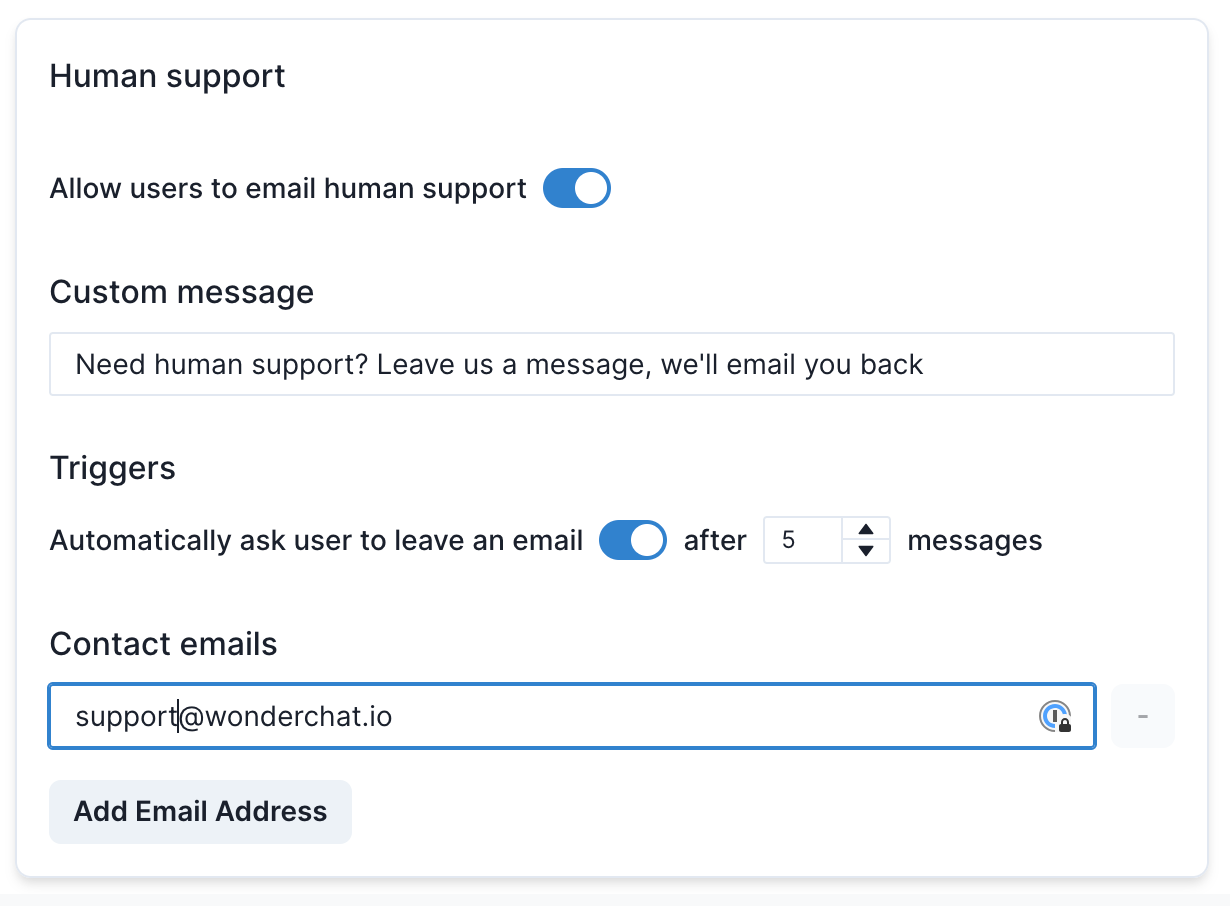
- Switch on the ‘allow users to email human support’ feature, which would allow for a user to leave a feedback to Wonderchat if AI is unable to respond to any queries.
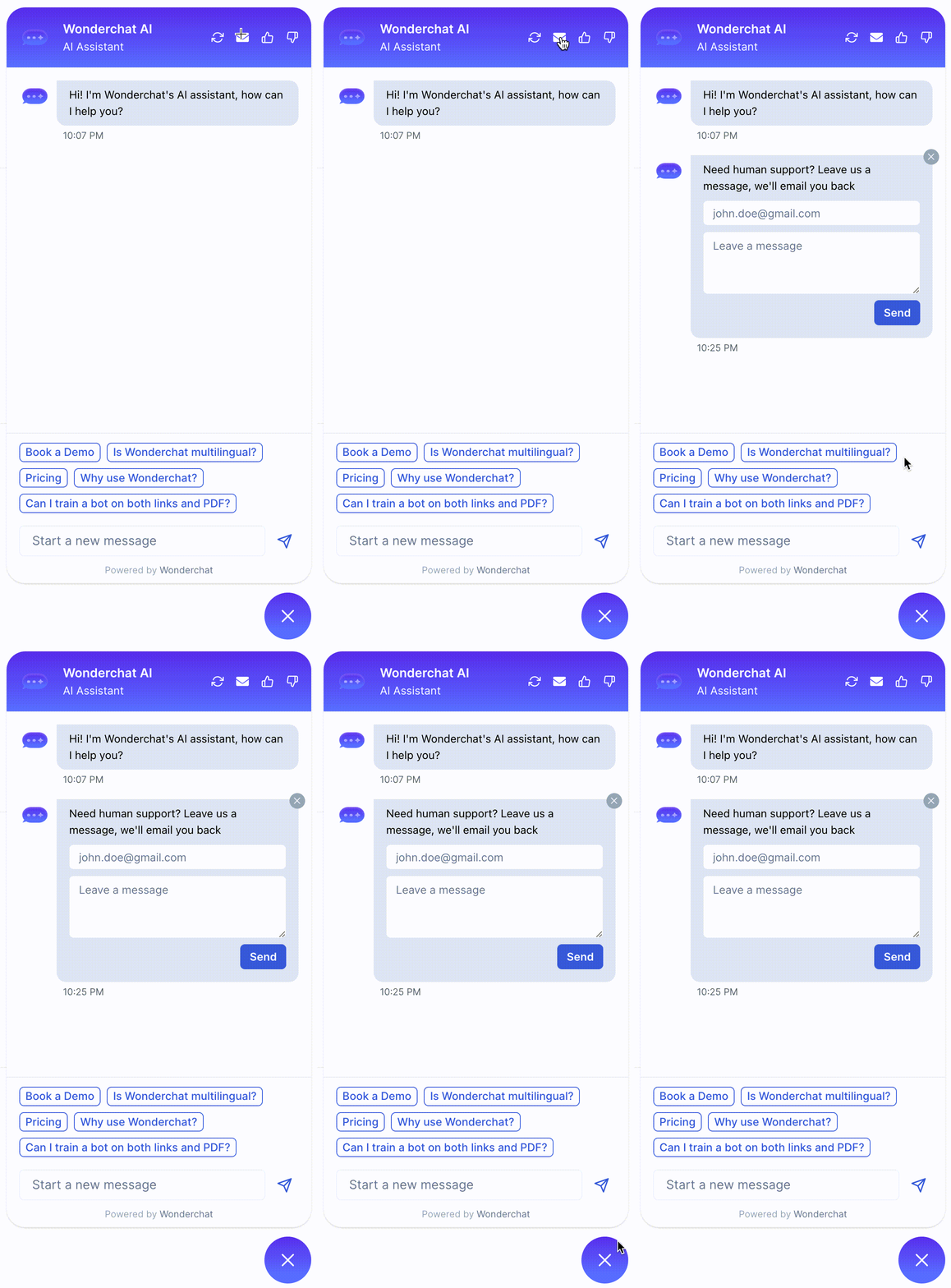
- Emailing to human support: Enabling the button below allows for the mailbox icon to appear in your chat widget
- The effect of allowing users to email human support is that a user can then click on the mail icon at the top right of the widget to leave a feedback for the chatbot owner
To make use our robust human support features, you can also configure the following settings below:
- Custom message: Once enabled you will be allowed to input a custom message to inform users that they can leave a message for human support.
- Contact Emails: You can add multiple emails to receive the feedback given by your website visitors after they talk ot Wonderchat
- Triggers: By enabling this option, you can automate the ‘leave feedback’ pop-up, which would then allow a user to leave feedback to human support after a certain amount of messages.
- Message variable: Setting a number for messages allows chatbot owners to decide when human intervention should be suggested in case AI fails to answer the support queries.
- Add email address: You can add multiple email addresses so that your chatbot can email all the included addresses to resolve their queries.
Once you have added the relevant information, click on “update” to ensure that your chatbot’s changes get fixed.
3. Start receiving emails from your customers who leave queries in the feedback form field
Once you’ve got your human support feature activated, you can sit back and relax - look forward to those queries being sent as emails sent into your inbox. All queries submitted to a user will now go into your inbox, and you can check out the sample below.