Wonderchat has a built-in function enabling our AI chatbots to handover a site user’s queries to a live agent in situations where a user prefers to engage live chat. This feature has to be enabled by the chatbot administrator for a site user to engage live support.
Activating Live Chat
- To activate Live chat, navigate to “Edit Chatbot”

- Navigate to the “Human Support and Live Chat” dropdown
- Ensure that “Enable Human support” is allowed
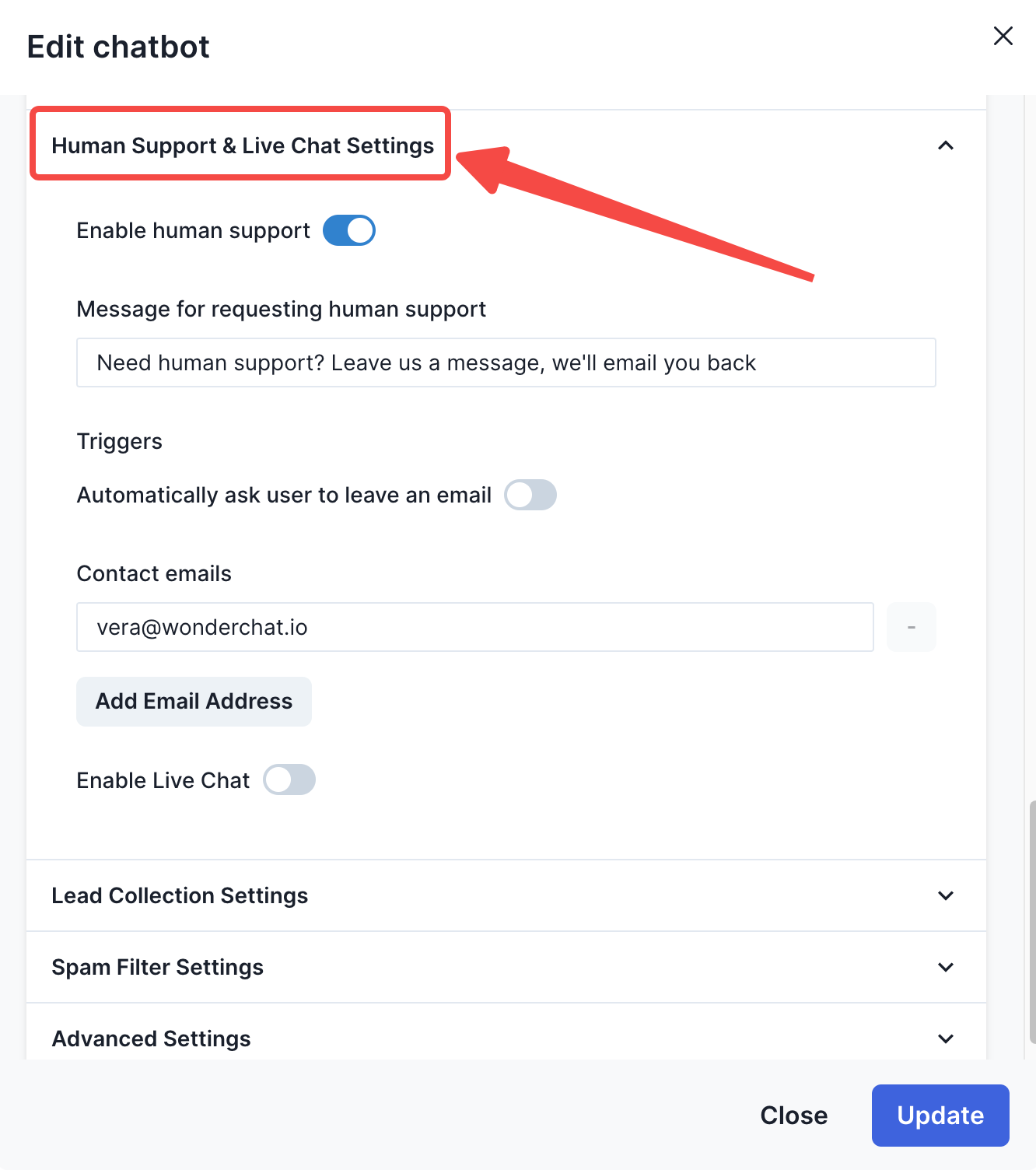
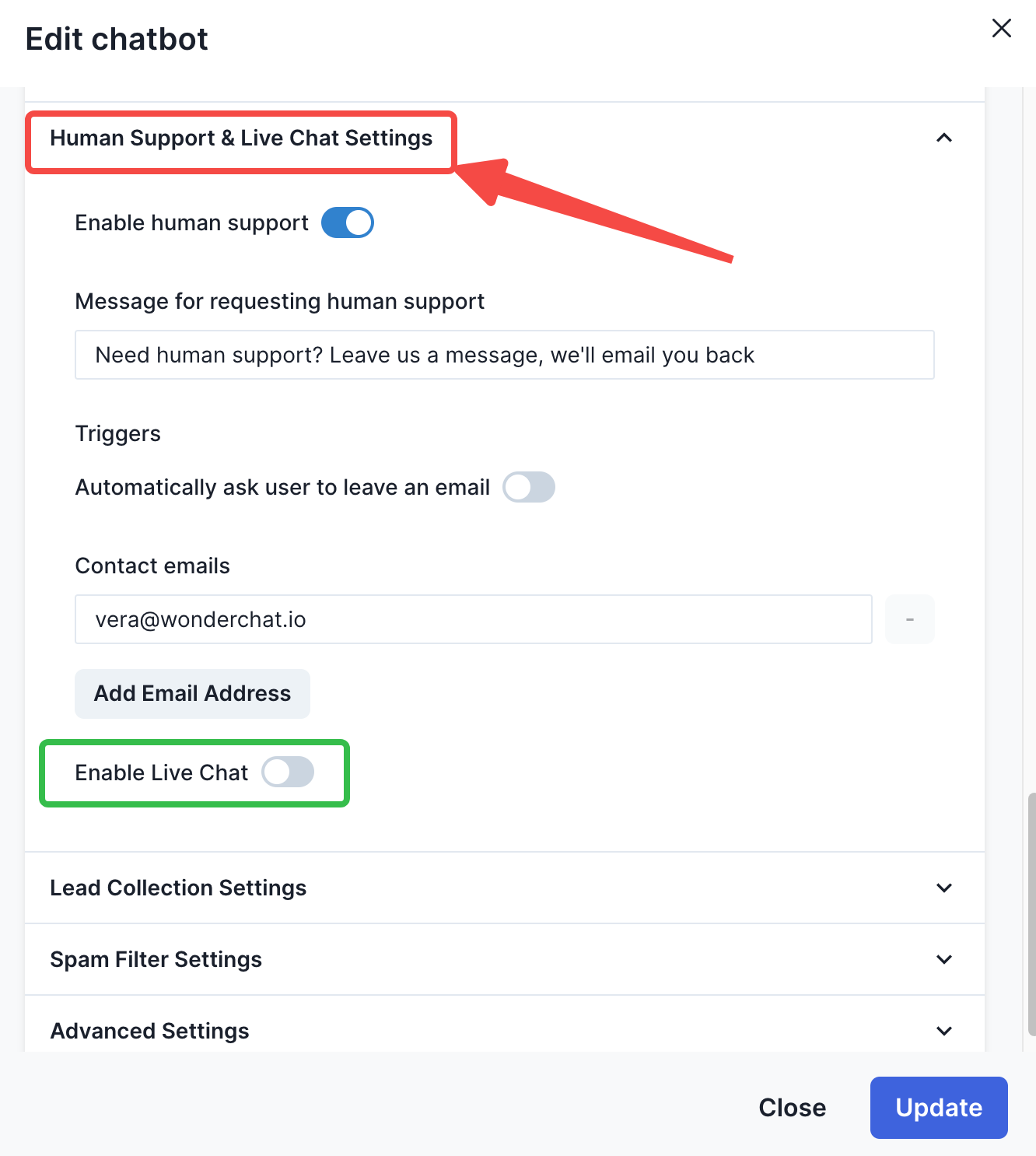
- Turn on the ‘live chat’ switch to activate the live chat for your site users to contact the live agents
Selecting Opening Hours
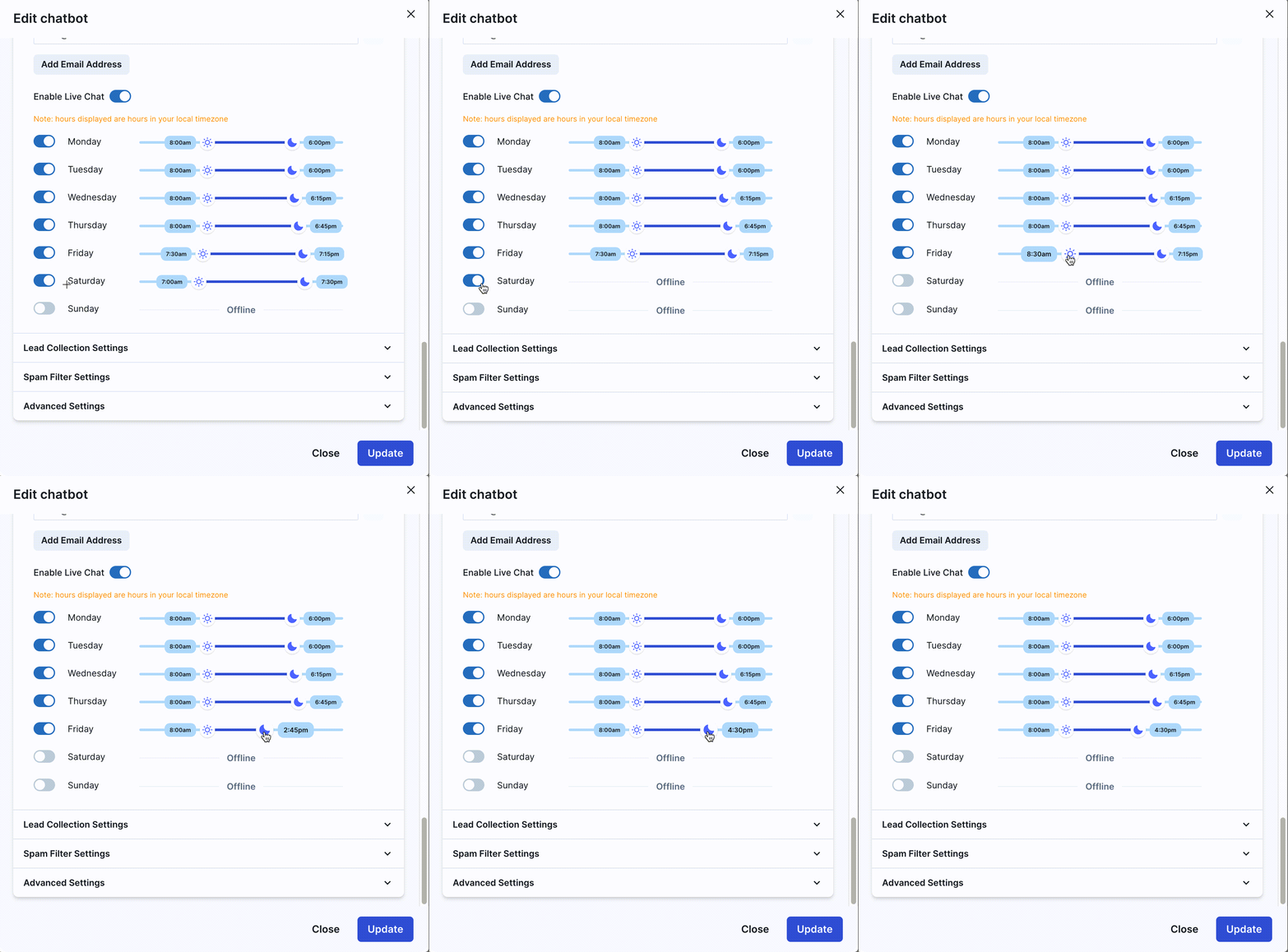
- Once the live chat is enabled, you can set the opening hours in which your site users can engage live support.
- Drag to toggle your live chat opening hours, where you would wish to allow your site users to contact live support.
- To disable live chat for off-work days, simply toggle the switch located on the weekday/weekend label
Testing out Live Chat in the backend environment
- To test the live chat function internally, click on “embed to website”
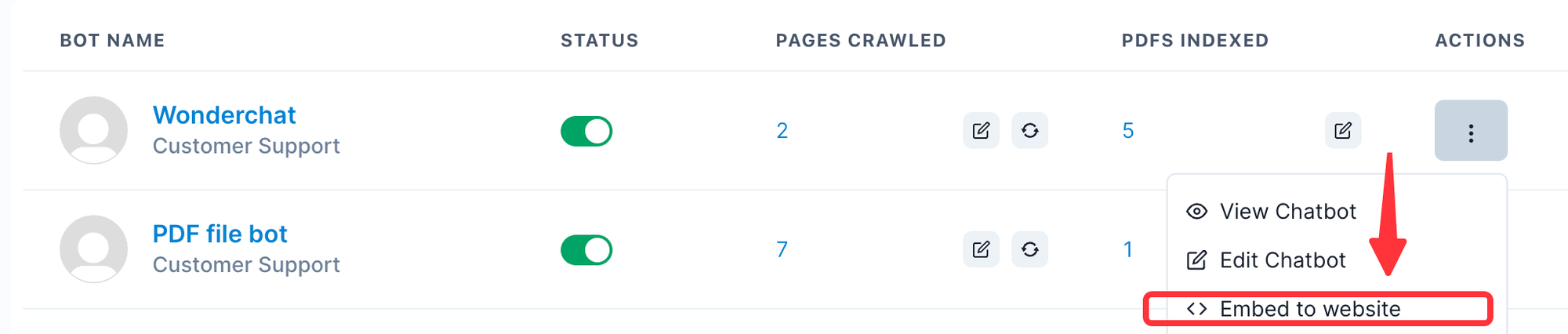
- Afterwards, click on ‘preview widget’
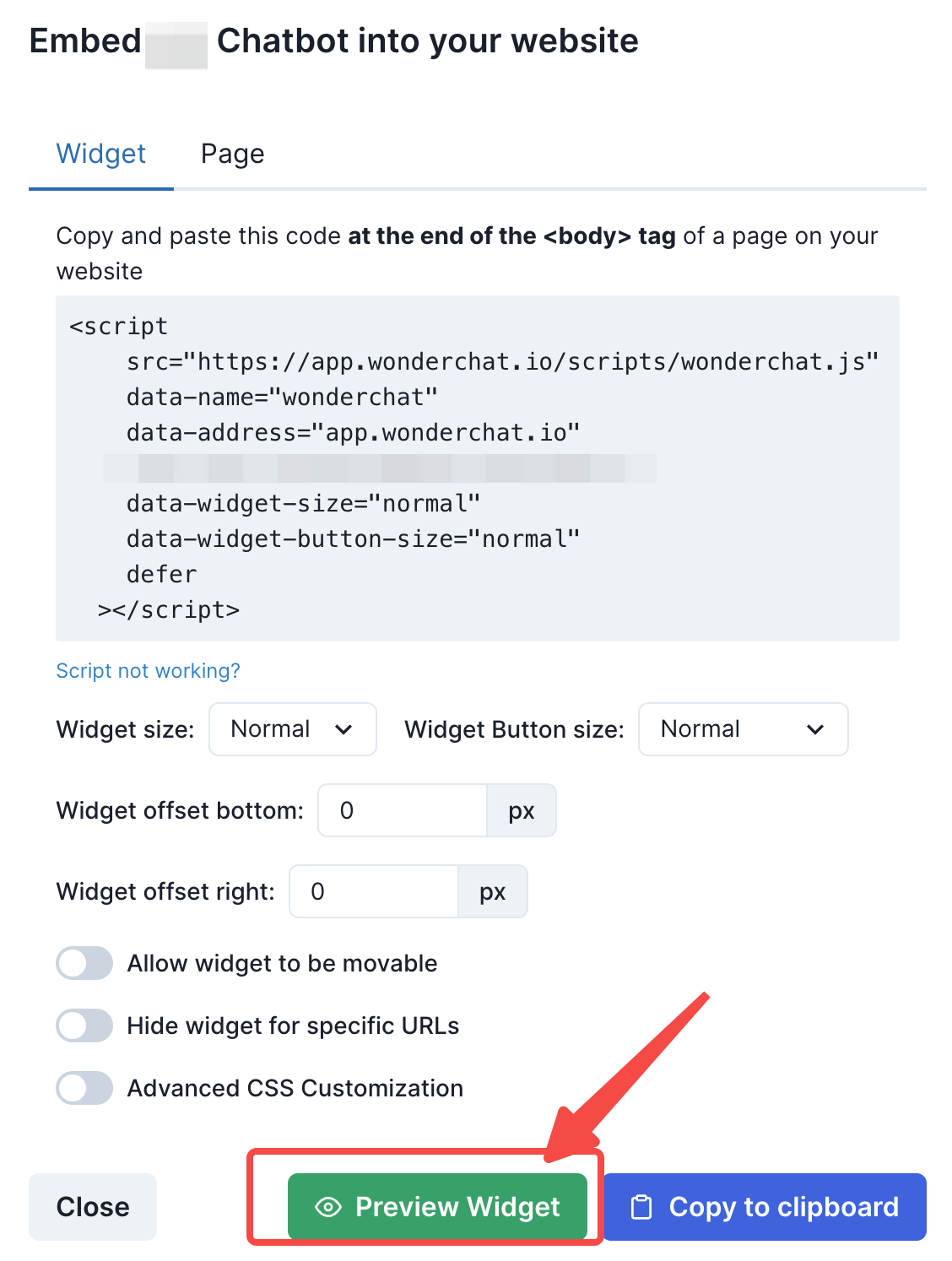
9. After clicking on ‘preview widget’, you can then test out your live chat by clicking on the live chat button

Testing out Live Chat in your live environment
- Once live chat is enabled, you can copy your chat widget embed code and embed it on the website of your choice

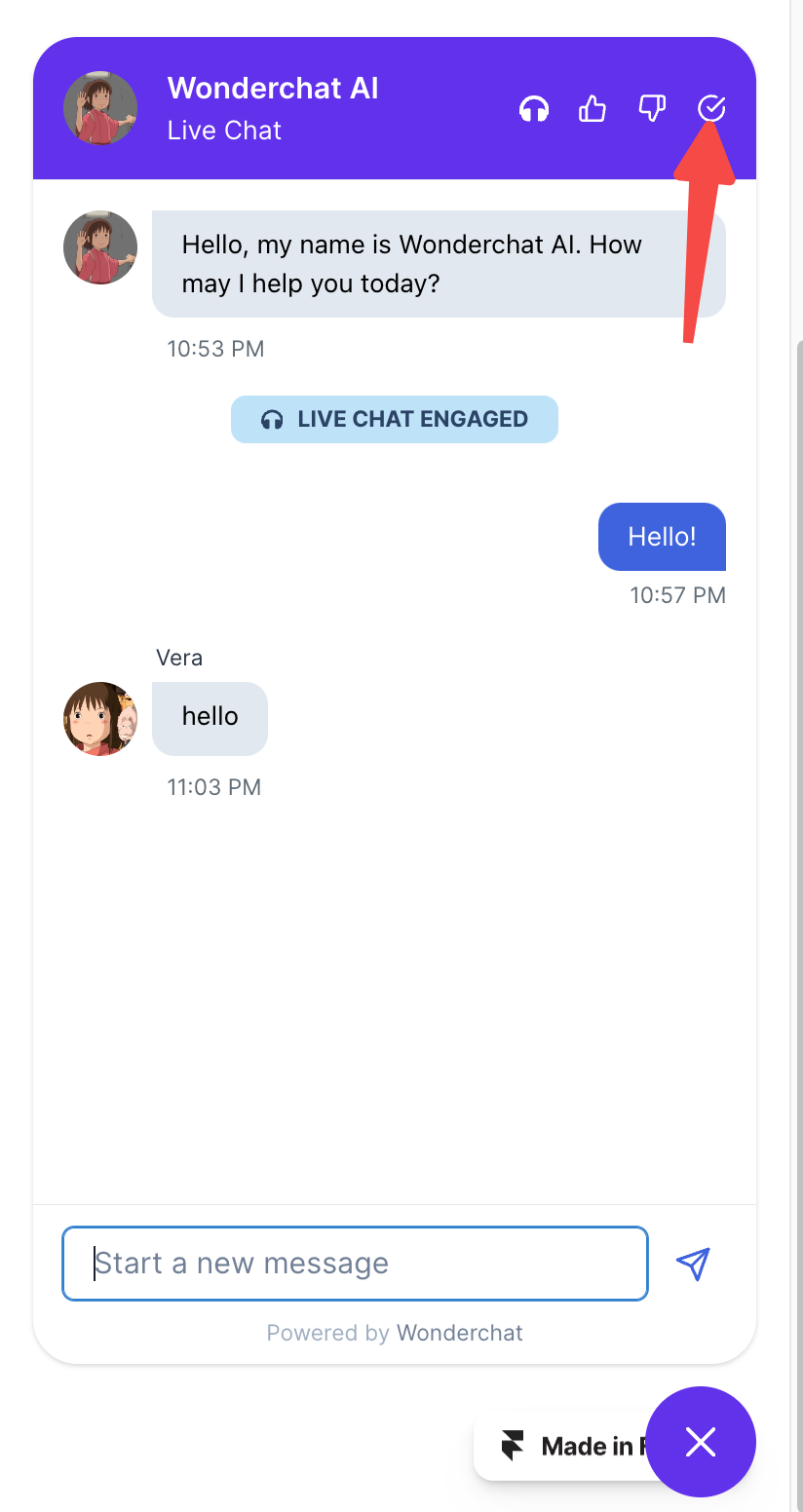
- Once the widget is embedded, ensure that the ‘live chat’ symbol is visible on the top right of the widget. This symbol indicates the availability of live chat.
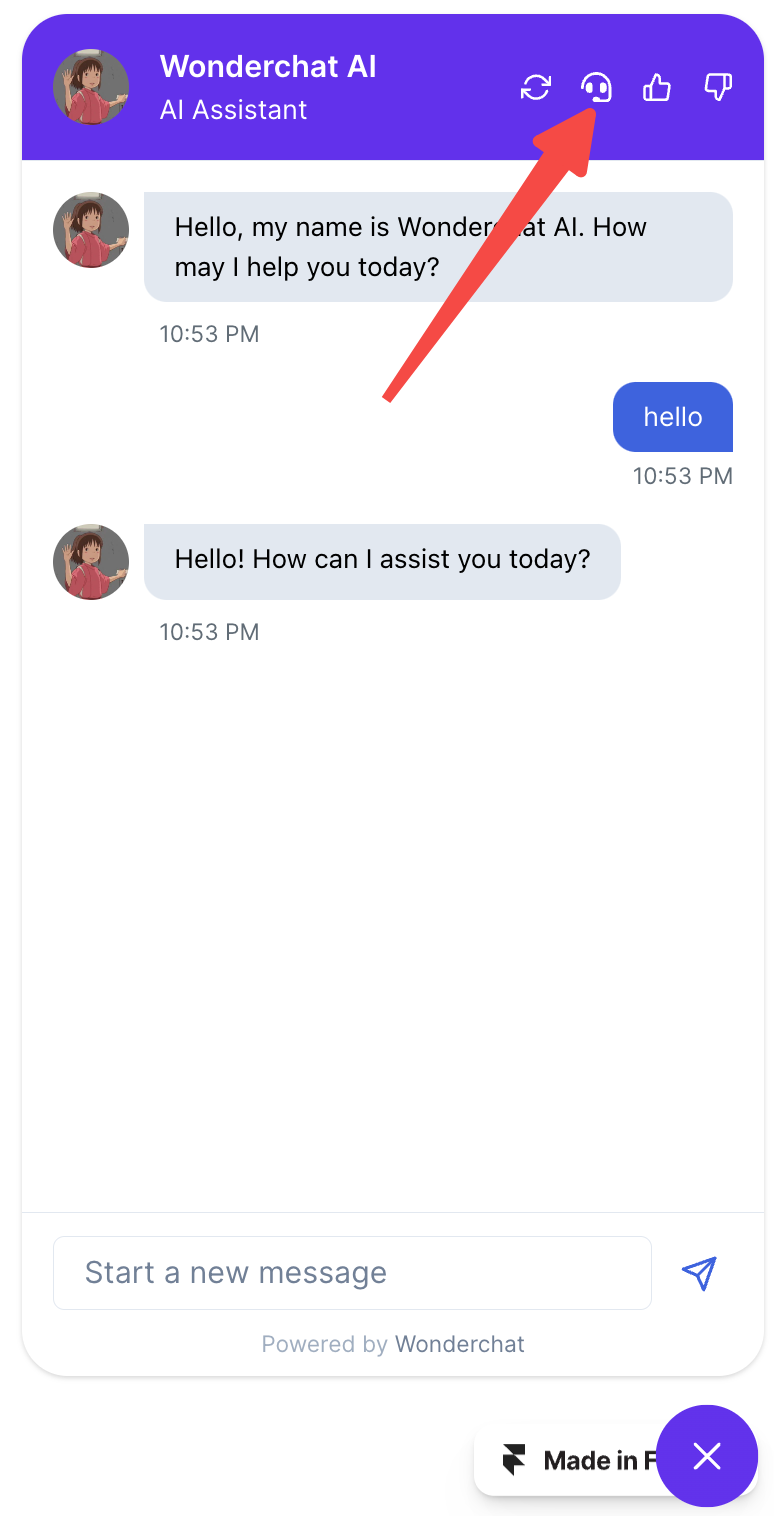
Triggering your Live Chat
- There are two ways to trigger your live chats
- By saying the words “live chat”
- By clicking on the widget button on the top right
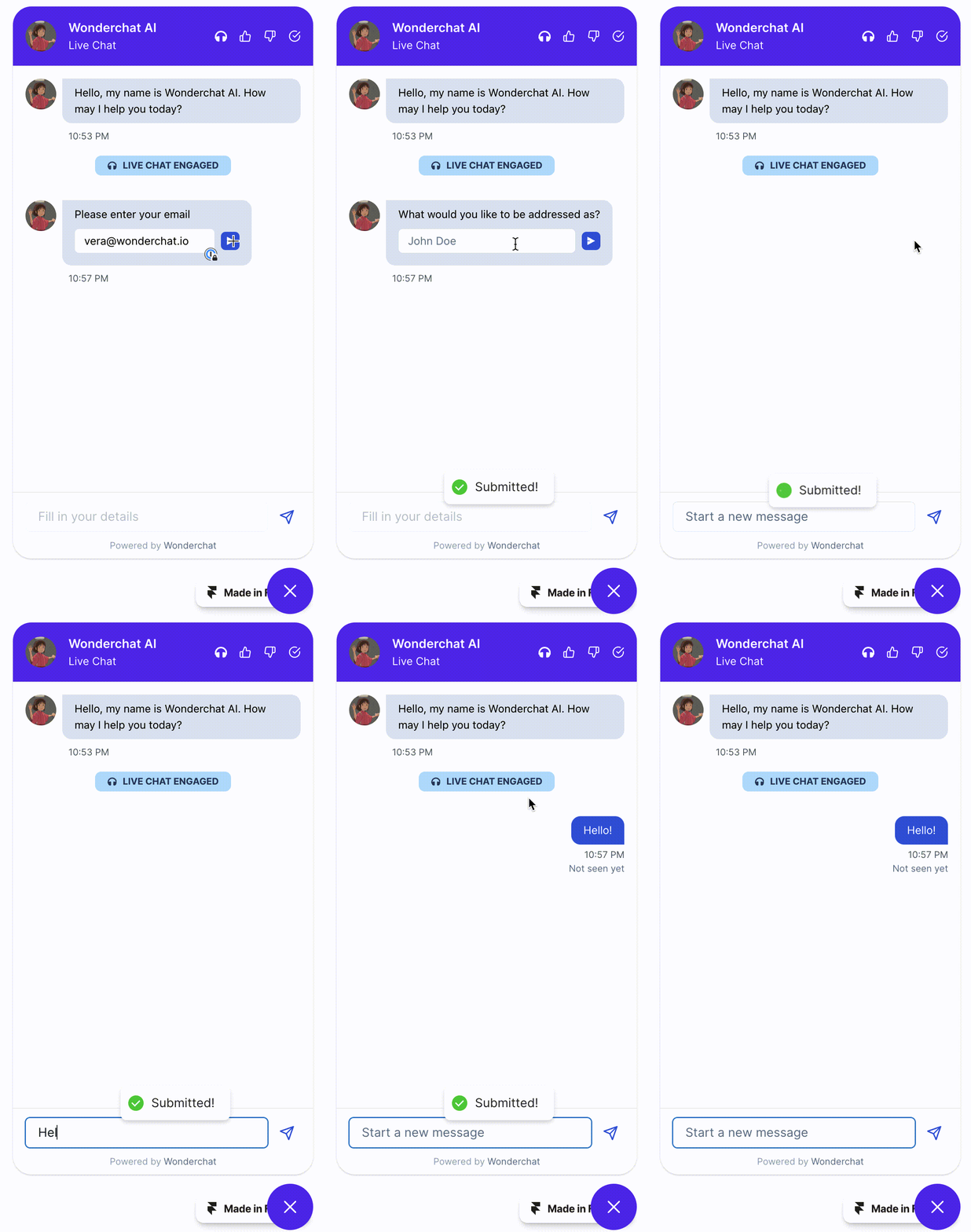
Responding to Live Chat requests
- Whenever a user triggers a live chat, your support agents would receive a live chat request via email
- Make sure your support agents have been ‘invited’ by the chatbot owner to be at least a ‘member’ or a ‘admin’ of the chatbot
- Your support agents will be able to respond to your site visitors in real time
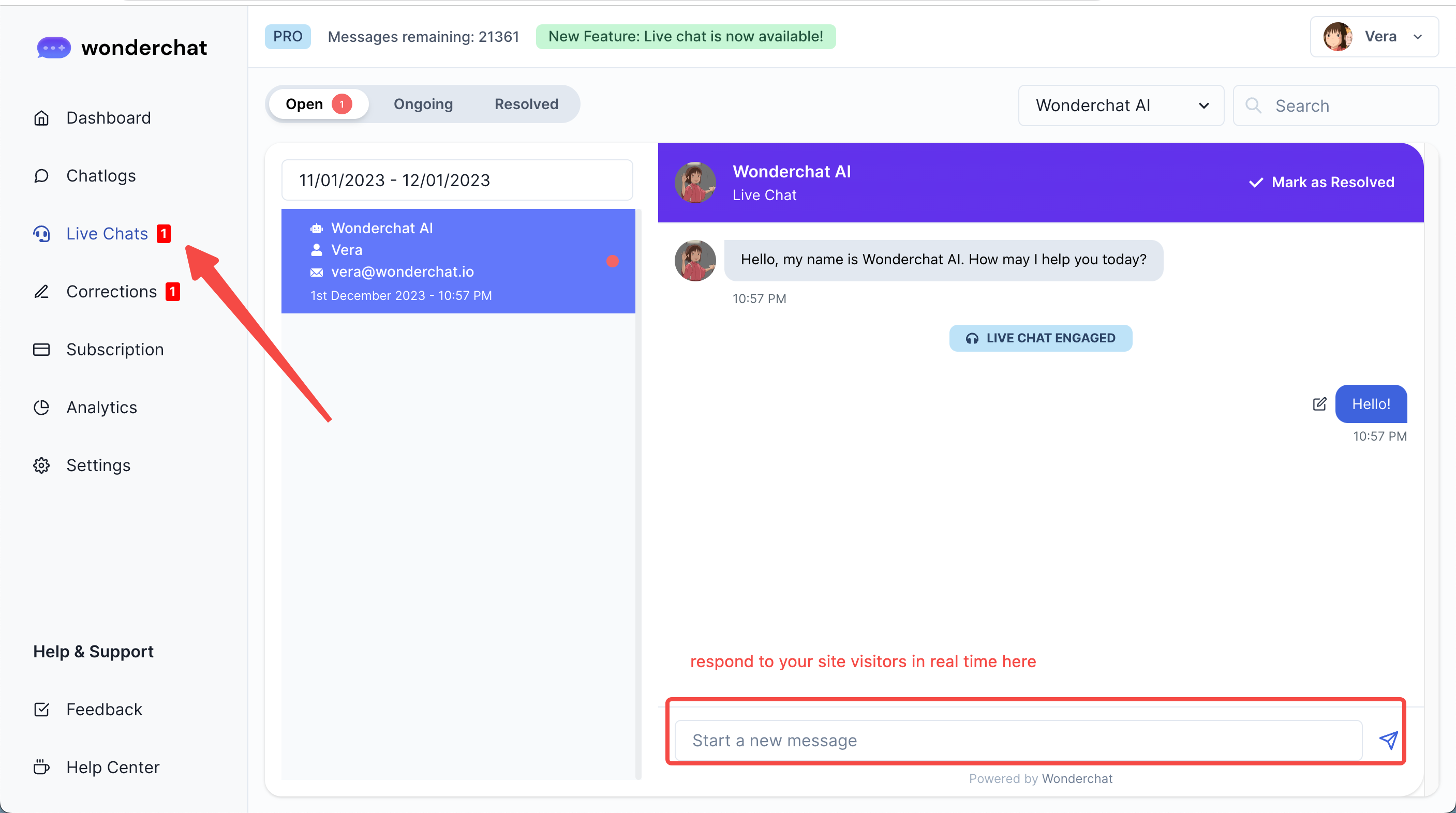
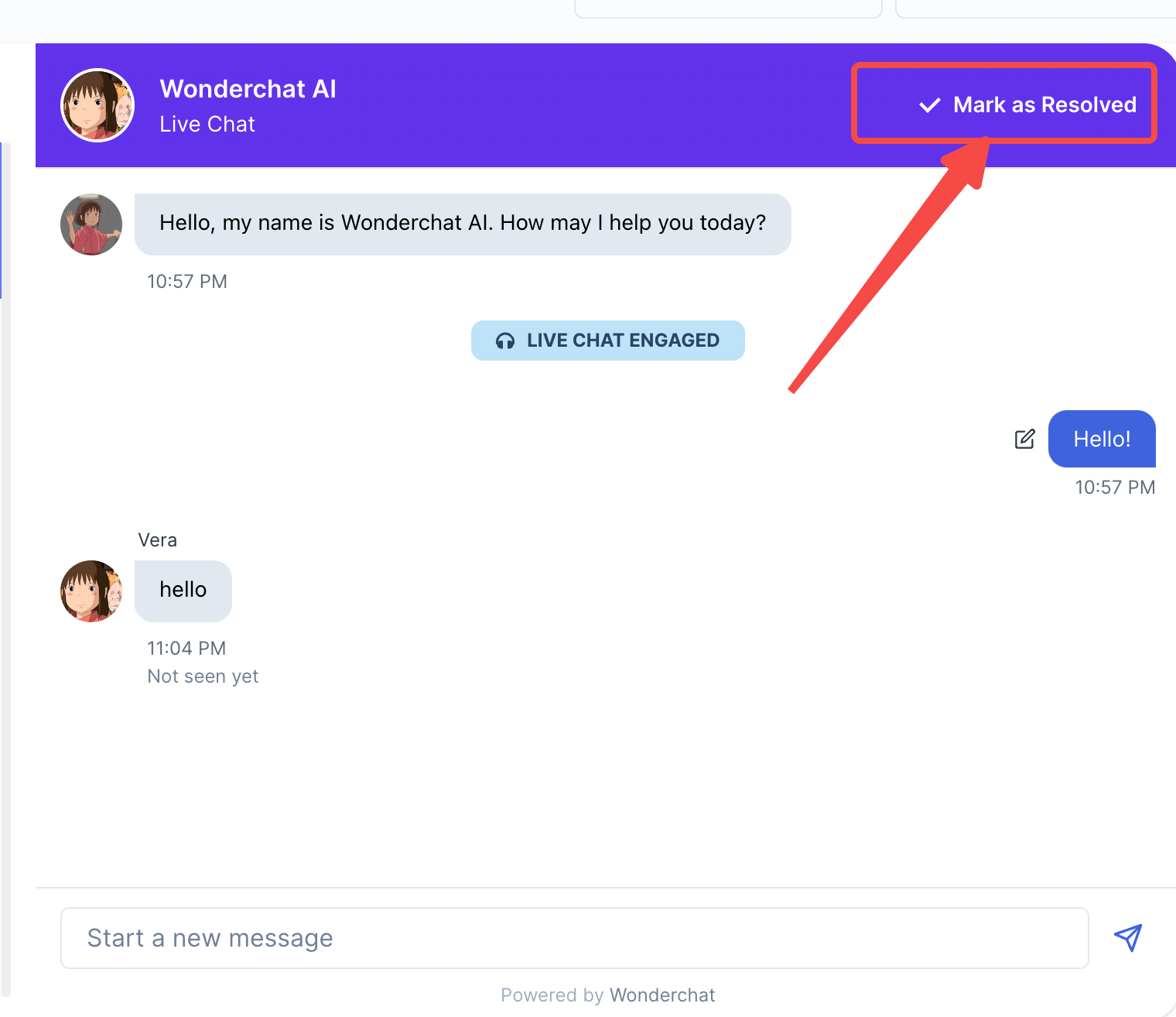
- Once you have finished the live chat, you can mark the conversation as resolved
- Site users can also end a live session by clicking on the tick icon
Setting-Up Fallback Response when Live Chat is unavailable
- You may also set-up a default message fallback when live chat is unavailable.
- Replace the default “Need human support?” with a message of your own choice.
- Include contact emails of the support team members who would be receiving these offline queries from your site visitors
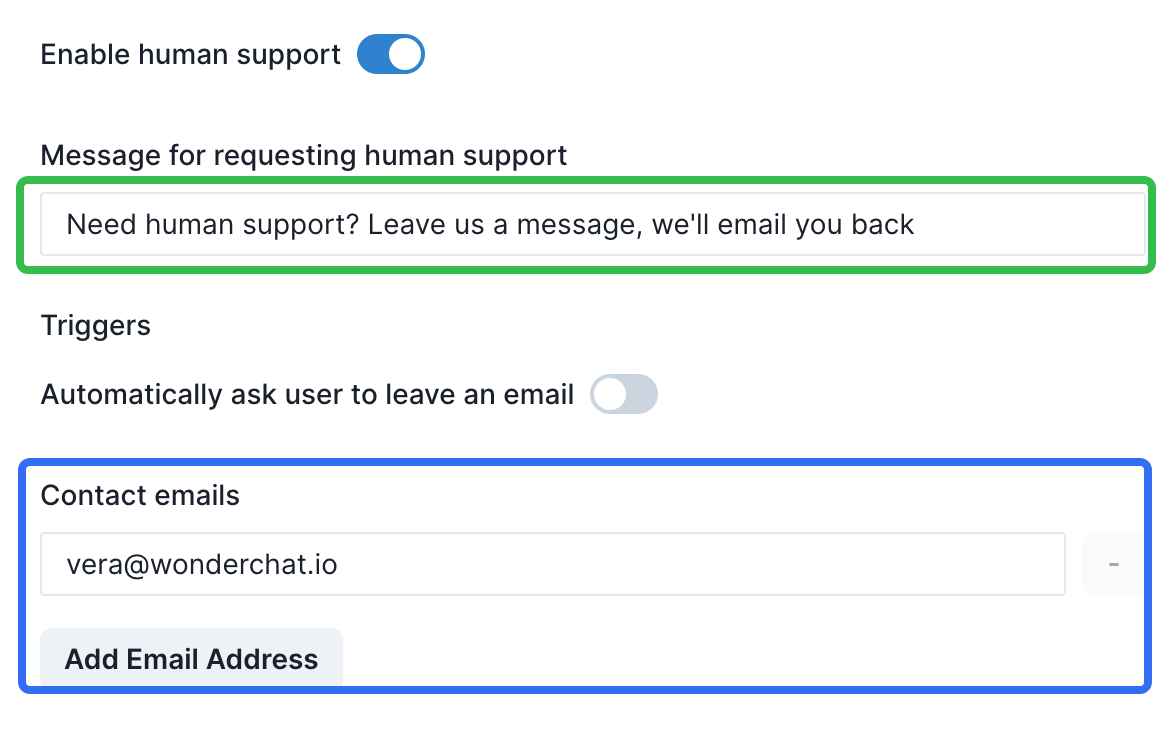
- The offline query will show up as a form collection field whenever a user leaves a message for offline support, and offline messages will be emailed to support.

How to Set-Up SMS Alerts for Live Chat requests
Now that you have live chat set-up, you can also create SMS notifications on your phone by setting up this template on Zapier.
To set-up, follow the documentation below: