Easily integrate your WonderChat AI into your website as a search bar, enabling visitors to interact directly with your chatbot for quick and relevant responses. Follow the steps below to embed the search bar on your webpage.
Step 1: Copy the Embed Code
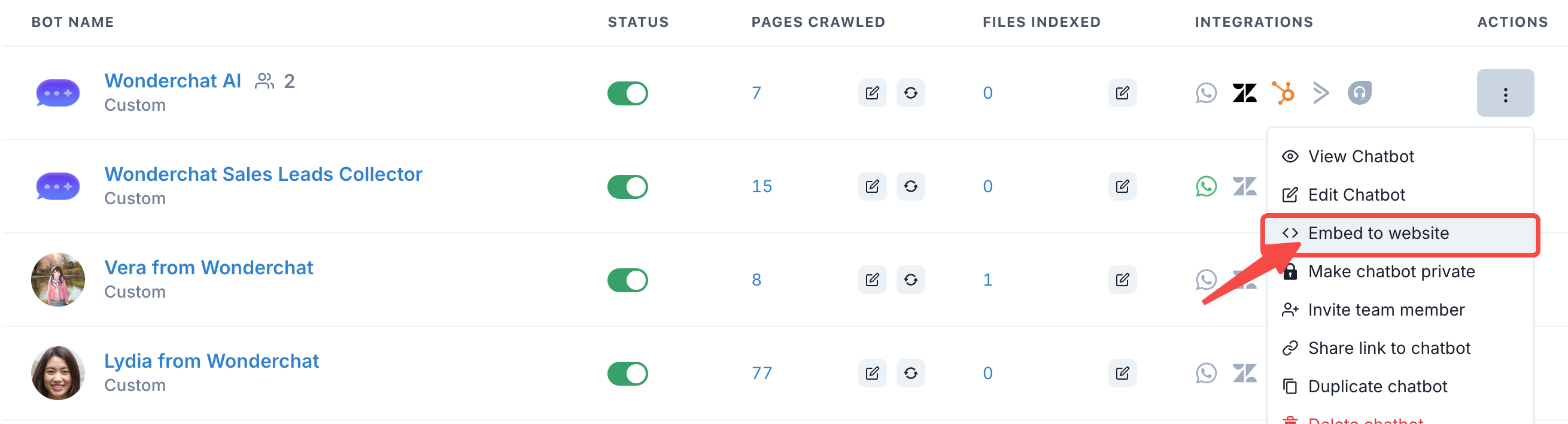
- Navigate to the Dashboard and click on the Actions dropdown to get access to the “Embed to Website” button
- Widget Code
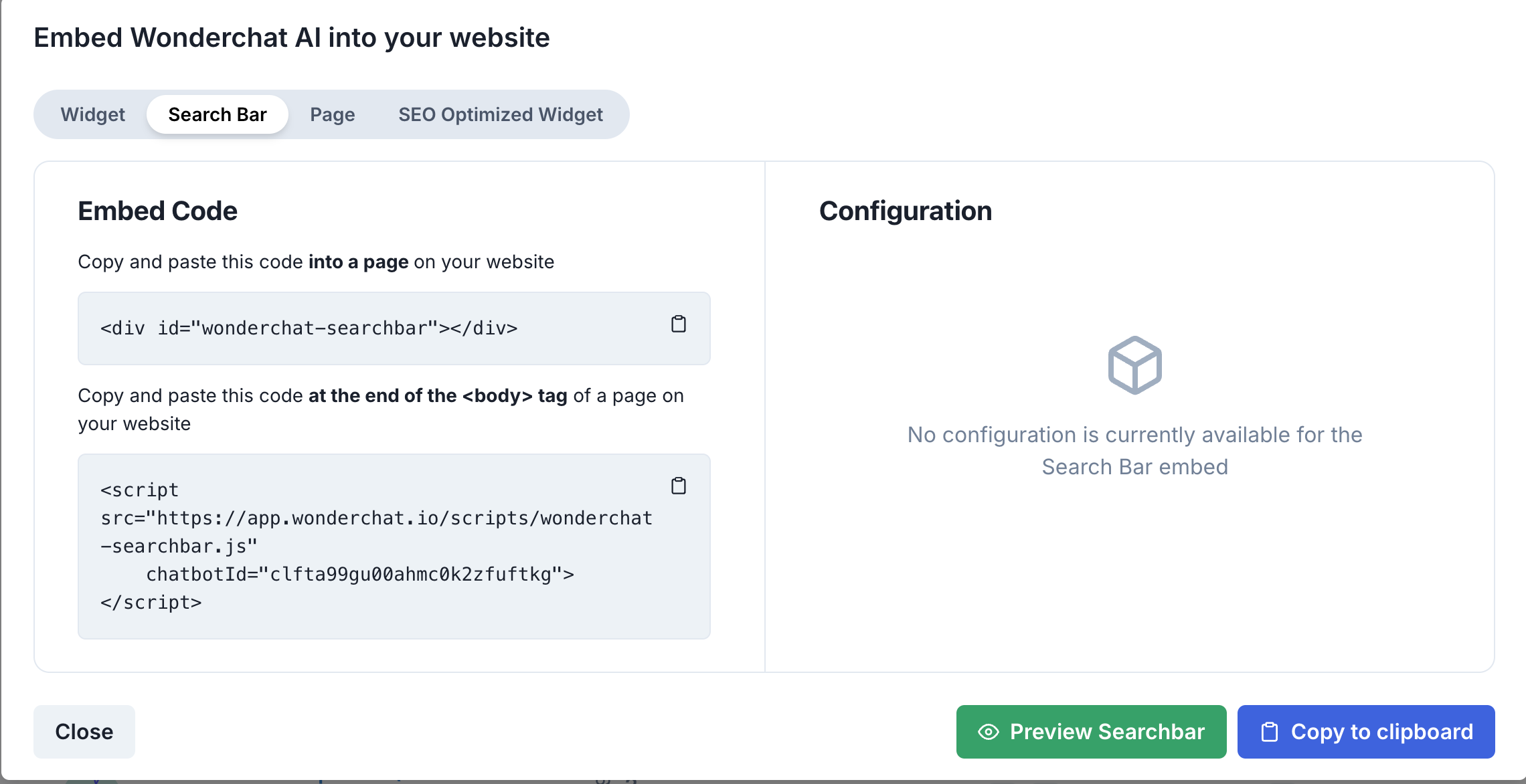
Copy and paste the following HTML code snippet into the section of your website where you want the search bar to appear:
<div id="wonderchat-searchbar"></div>
- Script Code
Then, copy and paste the following JavaScript code from your embed as searchbar code pen.
<script src="<https://app.wonderchat.io/scripts/wonderchat-searchbar.js>"
        chatbotId="YOUR_CHATBOT_ID">
</script>
Step 2: Preview the Search Bar
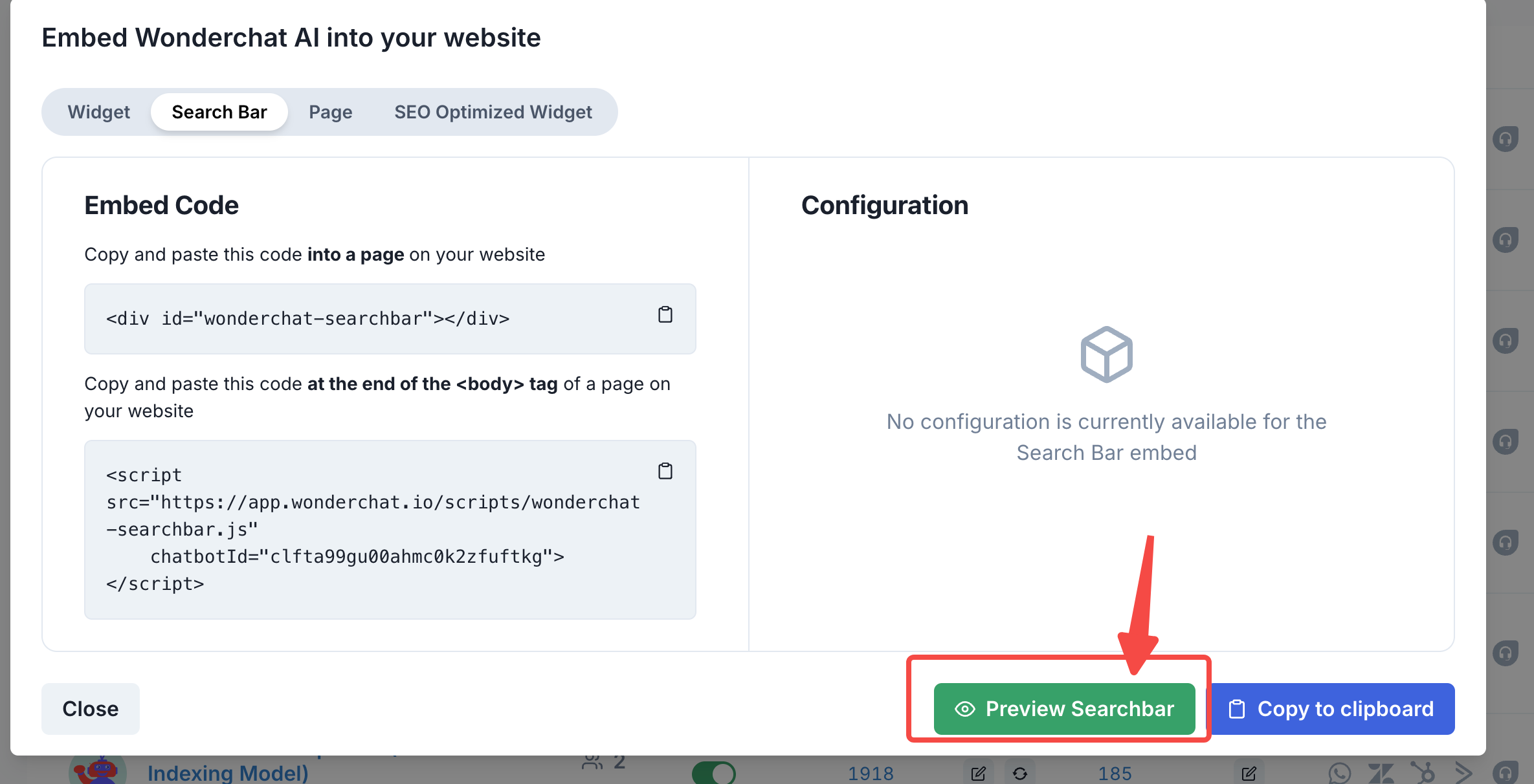
To see how the search bar will appear and function on your site, click the Preview Searchbar button available on the embed configuration page.
Step 3: Paste the code into your website and publish Your Changes
Once you've embedded the code into your website, save the changes and publish the updated page. The WonderChat search bar will now be live, allowing your site visitors to interact with your chatbot via a search interface.
If you need assistance with embedding or customization, feel free to reach out to our support team.